BulkWare – Theme for Building Materials & Skip Hire
BulkWare is a Shopware 6 theme for retailers who sell bulk materials, building materials and containers online – from sand, gravel and crushed stone to topsoil, bark mulch and skips for construction waste. The robust industrial design in steel blue and signal orange conveys expertise, and the industry-specific elements answer your customers' questions right in the shop: How much do I need? Do you deliver to me? What does the skip cost?
Highlights
- 🏗️ Industry design for building materials, bulk goods, skip hire and disposal
- 📞 Contact bar with phone, email and service hours above the header
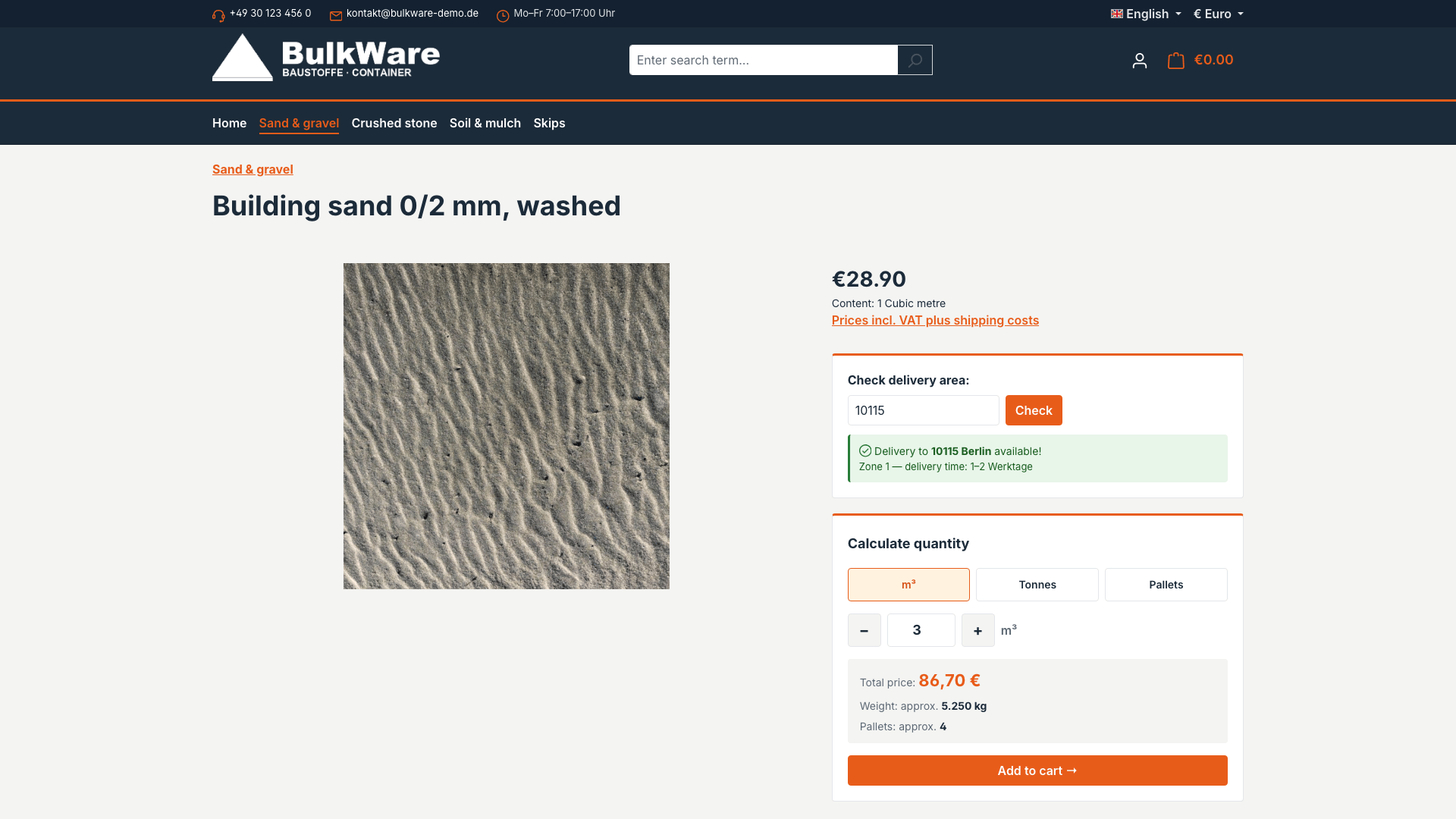
- 📍 Delivery area check by postcode on the product page
- 🧮 Quantity calculator in m³, tonnes or pallets
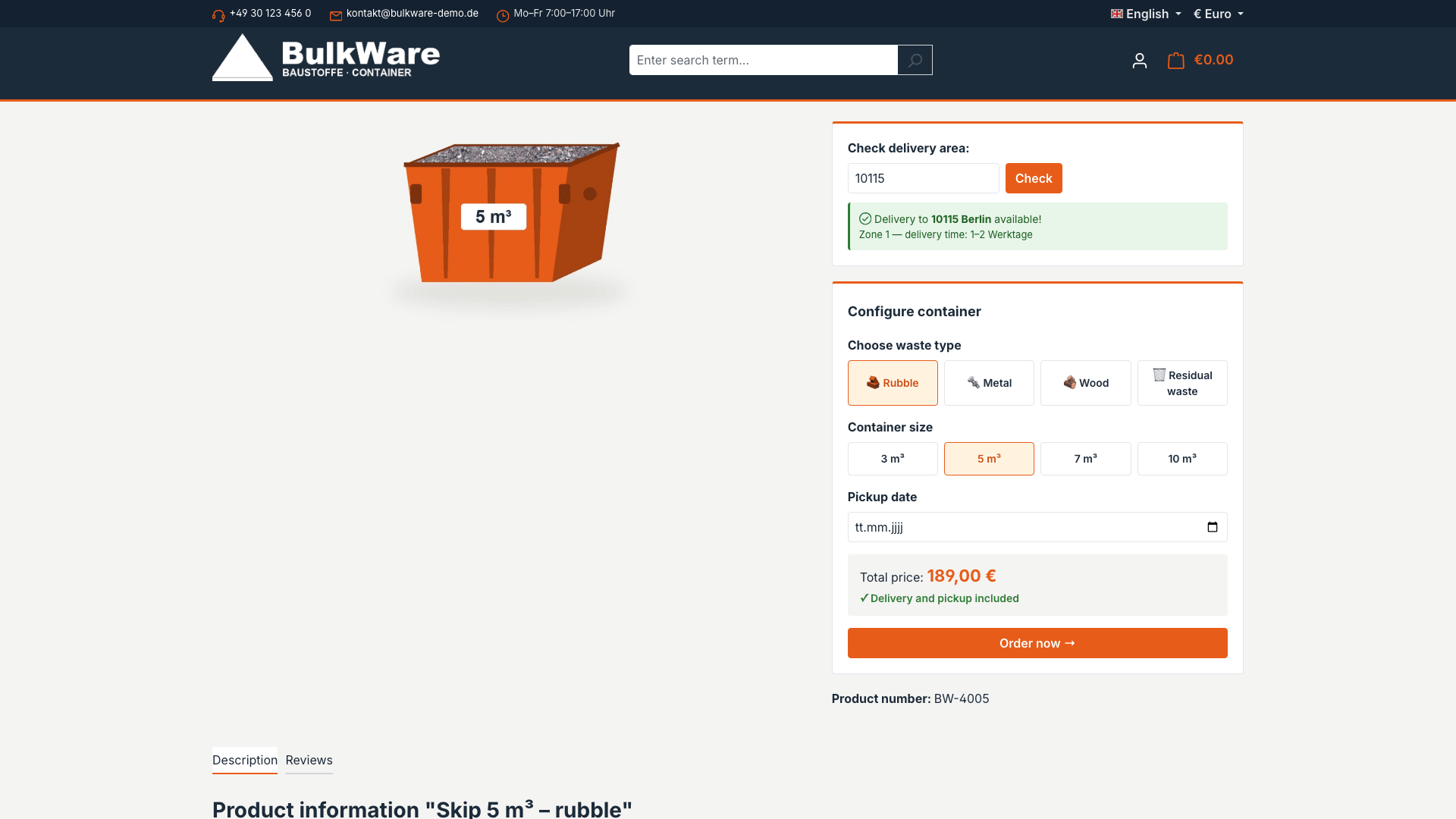
- 🚛 Container configurator for waste type, size and pickup date
🔧 Installation
- Requirement: Shopware 6.7
- Install from the Shopware Store or as a ZIP under Extensions > My extensions
- Install and activate the theme
🎨 Assign the theme
- Open Content > Themes and select BulkWare.
- Assign it to the desired storefront sales channel under Sales channels.
- Save – Shopware compiles the theme automatically.
Inter font without external requests
BulkWare uses the Inter font, which Shopware serves itself. No Google Fonts or other external resources are loaded.
⚙️ Configuration
All settings are in the theme manager under Content > Themes > BulkWare.
Colours, font and logo
BulkWare sets the standard Shopware theme fields to the industry colours. You can change every value:
| Setting | Default |
|---|---|
| Primary colour | #e85c1a (signal orange) |
| Secondary colour | #1c2b39 (steel blue) |
| Border colour | #d0d5d9 |
| Text and headline colour | #1c2b39 |
| Buy button | #e85c1a, white text |
| Font | Inter |
| Logo (desktop, tablet, mobile) | Your logo – shown in white on the dark header (can be switched off) |
Block "BulkWare – contact & opening hours"
| Setting | Where it appears |
|---|---|
| Phone | Contact bar and footer (as a clickable link) |
| Contact bar (on large screens) and footer | |
| Service hours | Contact bar |
| Tagline | Footer, below the logo |
| Opening hours weekdays / Saturday | Footer, "Opening hours" column |
| Opening hours note | Footer, e.g. "Closed on Sundays and public holidays" |
Empty fields are not shown in the shop.
Block "BulkWare – storefront components"
| Switch | Default |
|---|---|
| Show header logo in white | on |
| Quantity and delivery badges in product boxes | on |
| Postcode delivery check on the product page | on |
| Quantity calculator on the product page | on |
| Container configurator on the product page | off |
🧩 Storefront components
Header and contact bar
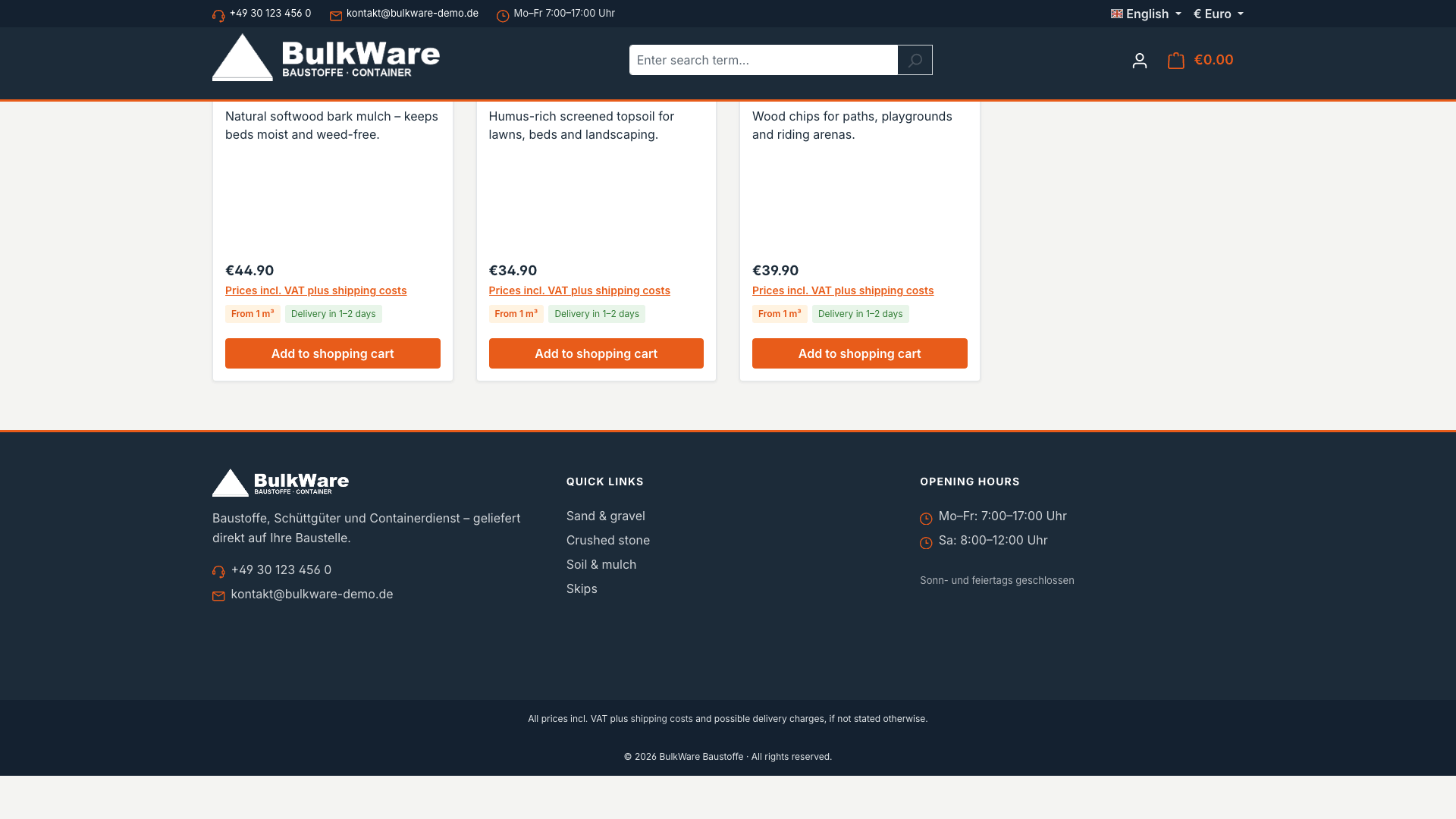
The dark header stays visible while scrolling. Above it, the contact bar shows phone, email and service hours; the language and currency switchers are kept. Navigation, search and cart follow the industrial design.
Product boxes
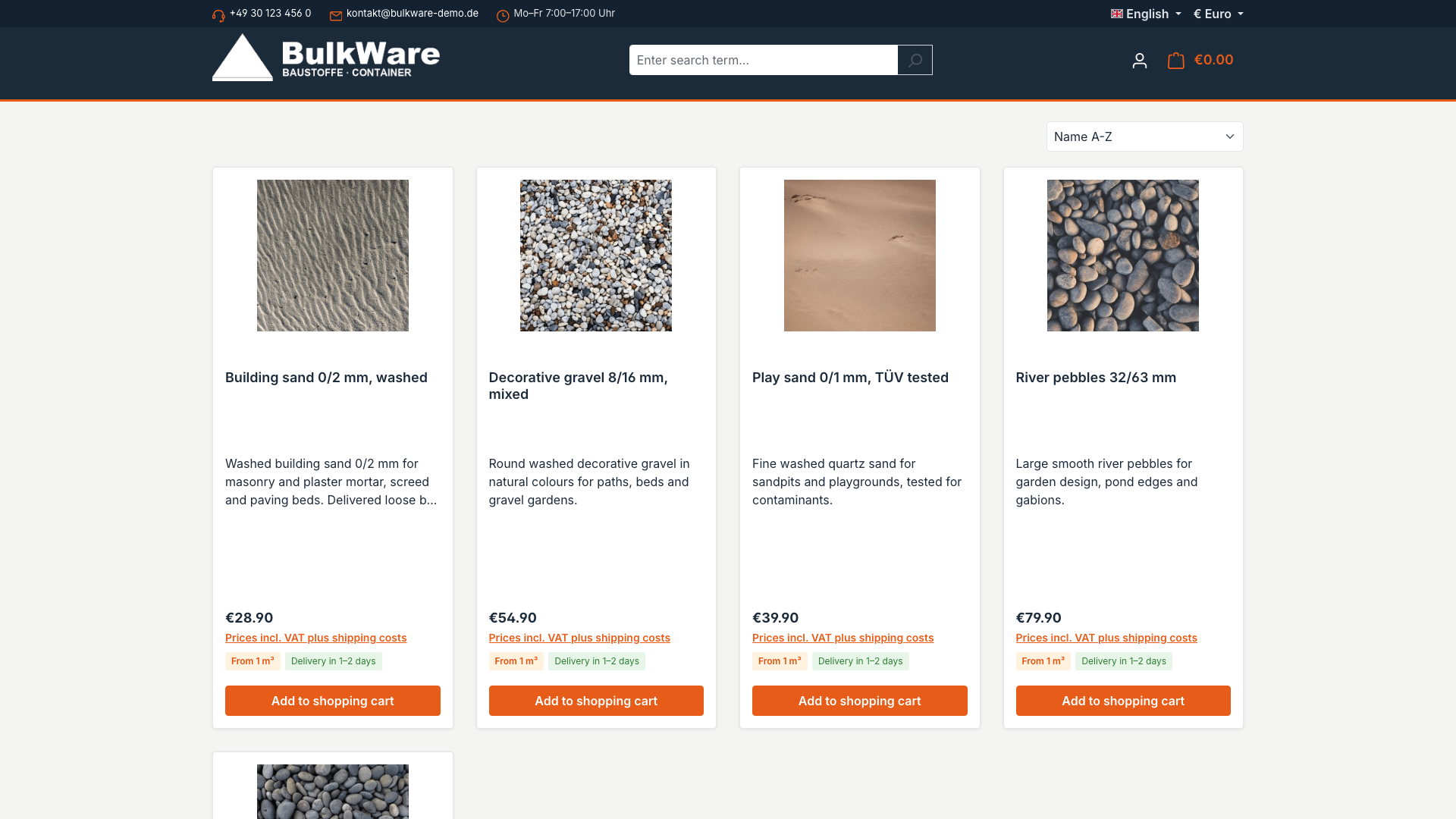
Product boxes show two badges below the price:
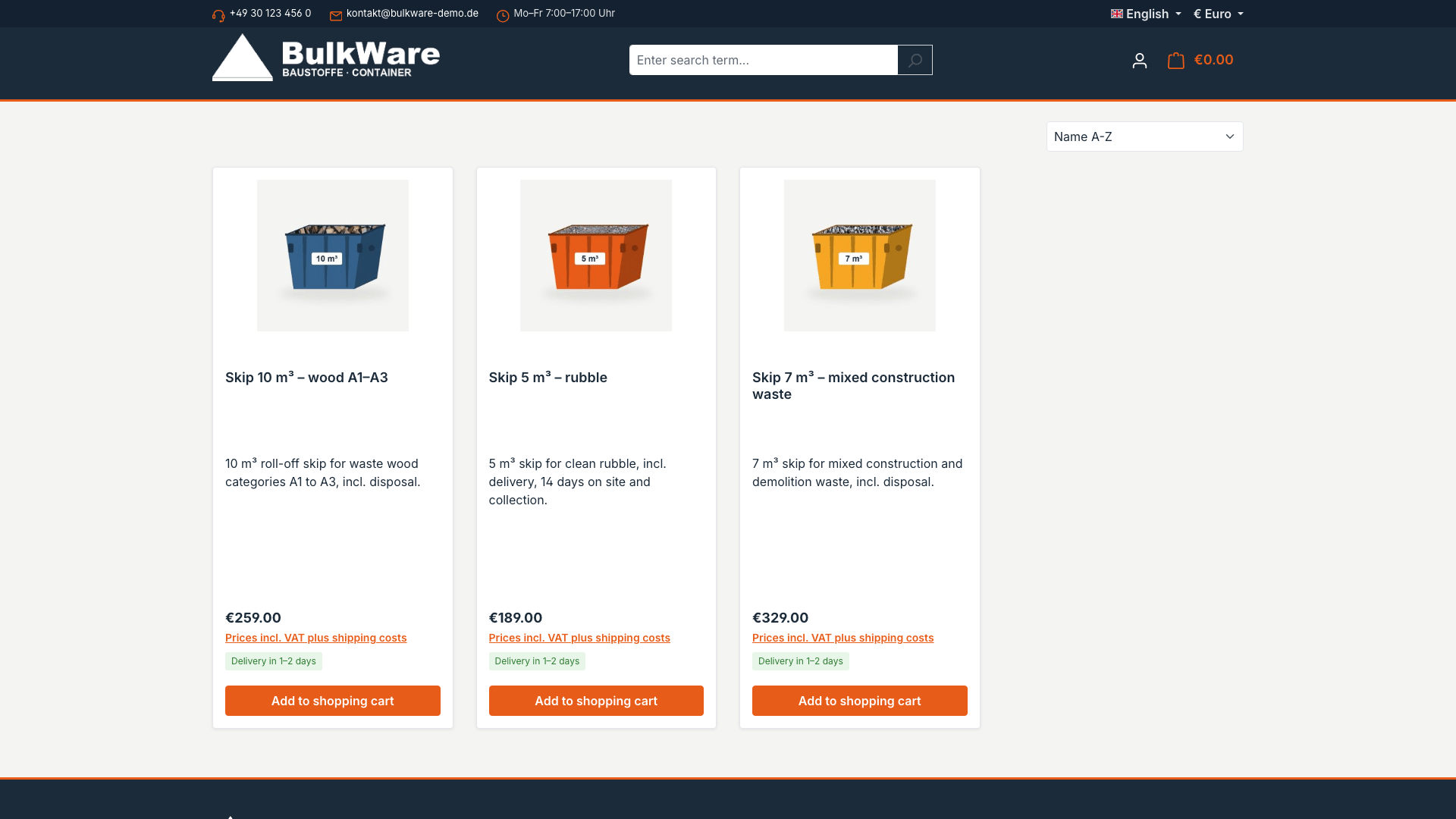
- Minimum quantity, e.g. "From 1 m³" – only for products with a scale unit and selling unit (product > Scale unit). Skips and piece goods do not get this badge.
- Delivery time, e.g. "Delivery in 1–2 days".
Delivery area check by postcode
On the product page, customers enter their postcode and see whether delivery is possible, in which zone and with which delivery time.
Quantity calculator
Customers choose the unit (m³, tonnes or pallets), adjust the quantity and see the total price, approximate weight and number of pallets. When the quantity calculator is active, it replaces the default buy form on the product page – there is only one "Add to cart" button.
Container configurator
For skip hire: choose the waste type (e.g. rubble, metal, wood, residual waste), container size from 3 to 10 m³ and the pickup date. The configurator also replaces the default buy form. Activate it in the block "BulkWare – storefront components".
Footer
Three-column footer with logo, tagline and contact, quick links and opening hours. The quick links show the categories of your sales channel's footer navigation (Sales channels > Storefront > Footer navigation); if none is set, the service menu is shown.
✏️ Adjust texts
All theme texts are snippets in German and English. You find them under Settings > Snippets with the prefix cnkBulkWare.
🔒 Privacy (GDPR)
BulkWare loads no external resources: no Google Fonts, no CDNs, no tracking scripts. All files are served by your own Shopware installation.
❓ FAQ
Which companies is the theme suitable for?
For building material dealers, gravel pits and bulk material suppliers, skip hire and waste disposal companies as well as garden and landscaping suppliers – wherever goods are sold and delivered by volume, weight or pallet.
Can I adjust colours, logo and contact details myself?
Yes. Colours, font and logo are set in the theme manager, contact details and opening hours in the block "BulkWare – contact & opening hours" – no coding required.
Can I hide individual components?
Yes. Postcode check, quantity calculator, container configurator, product badges and the white header logo can each be switched on and off.
Why does a product not show a minimum quantity badge?
The badge only appears for products with a scale unit and selling unit, e.g. 1 cubic metre. Piece goods and skips deliberately do not get it.
Which Shopware version is required?
Shopware 6.7. No other plugins are required.
More documentation content and screenshots will follow with the next versions of the theme.
📬 Support
For questions, improvement suggestions or individual adjustments, contact us by email at support@cnk-plugins.de.