Charity – Donation
With the Donation – Organisation plugin, you can manage targeted donation campaigns and offer your customers the opportunity to participate in charitable initiatives during checkout – flexible, transparent, and easy to configure.
You can set up any number of organisations with a banner and description, and define per sales channel how customers donate: via freely selectable amounts, a percentage of the order total, or rounding up to the next whole amount. The donation appears directly in the cart and at order completion, optionally with a banner, description, and an overview of the total amount already donated.
Highlights
- ❤️ Donation campaigns directly in the Shopware checkout
- 🏢 Any number of organisations with banner & description
- 💶 Three donation types: free amounts, percentage or rounding
- 🛒 Show the donation in the cart and at order completion
- 📊 Display the total donated amount and a donation overview in the customer account
- 🎛️ Per-sales-channel configuration – including customer group exclusion
- 🏷️ Customisable badge (logo or symbol) in the checkout
- 🧾 Automatic PDF donation receipts by email (In-App Purchase)
❓ FAQ
Which donation types does the plugin support?
Three: free amounts (the customer selects from predefined values), percentage of the total order, and rounding to the next whole number (the difference is donated). The options can be combined.
Can I offer multiple organisations?
Yes. You can create any number of organisations – each with a name, description, banner and position. The customer chooses which organisation to support during checkout.
Is the donation also shown in the cart?
Optional. In the settings you can show or hide the donation in both the cart and at order completion.
What happens to the donation if an order is cancelled?
If the Cancel donation option is active, the associated donation is cancelled automatically as soon as the order is cancelled.
Can I exclude certain customer groups from the donation?
Yes. Via Exclude customer groups you define for which customer groups the donation option is not shown.
Can customers track their donations?
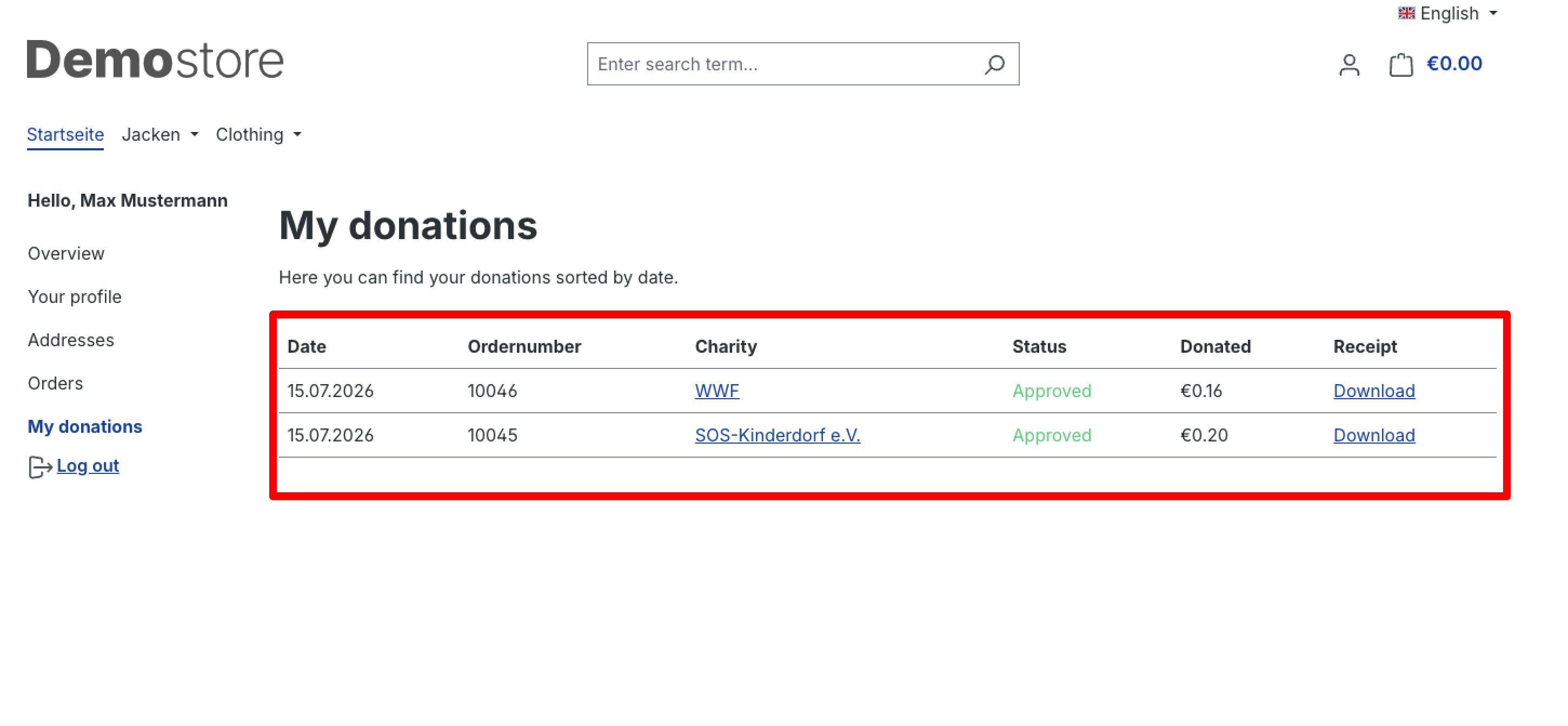
With the donation overview enabled, customers see their donations in the customer account. In addition, the total amount already donated can be displayed in the shop.
Do customers receive a donation receipt?
Yes, provided the Donation receipts In-App Purchase is active. When an order contains a donation, a PDF donation receipt is generated and emailed to the customer once. It can also be downloaded by the merchant from the donation list in the admin and by the customer under "My donations". See Donation Receipts (In-App Purchase) for details.
🔧 Installation
Requirement
The following plugin must be installed and activated once before using this plugin: CNK Foundation.
- Requirement: CNK Foundation plugin
- Installation via the Shopware Store
- Install and activate the plugin in the Shopware Plugin Manager
- Configure it in the admin area (see Configuration below)
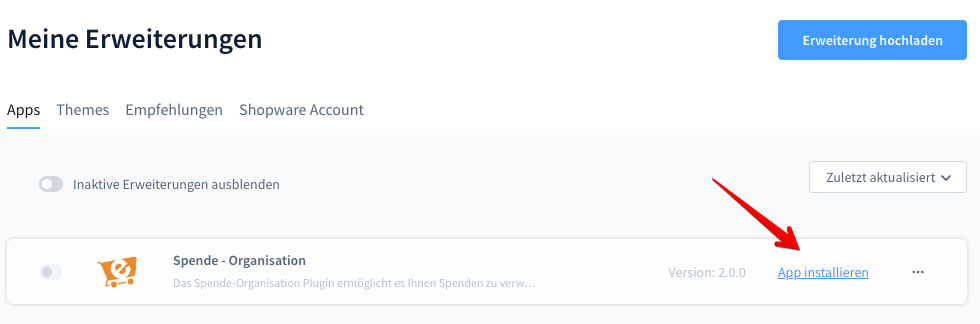
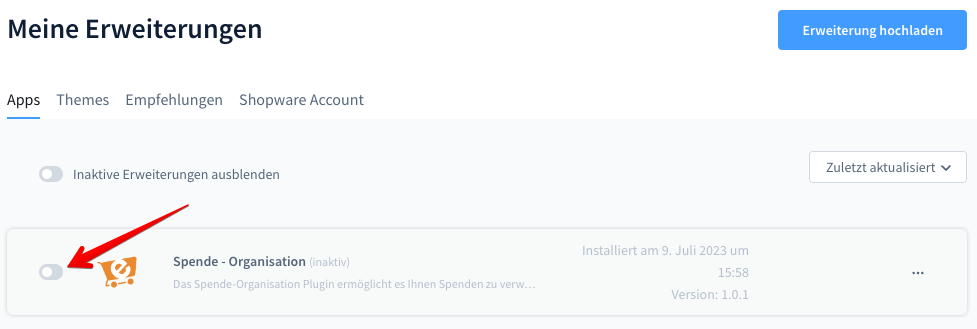
Then click the icon to activate the plugin:
⚙️ Configuration
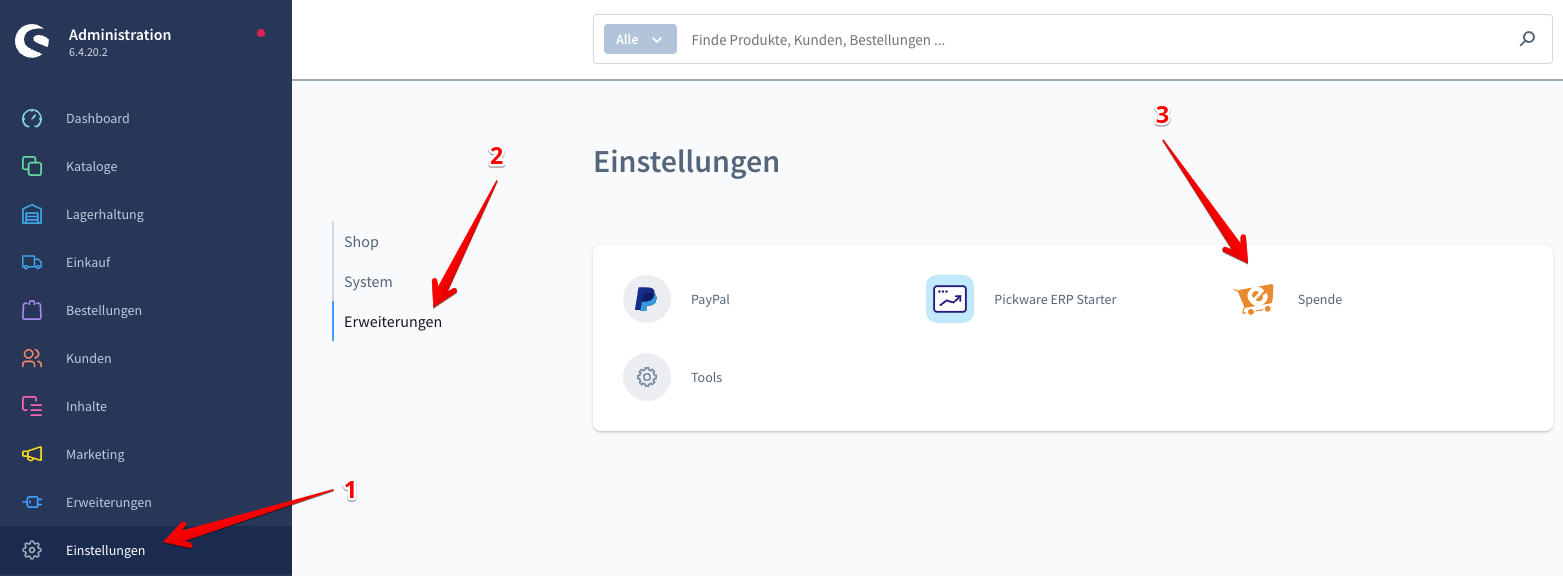
Open the plugin configuration in the admin area to set up donation options, display and organisations per sales channel.
General Settings
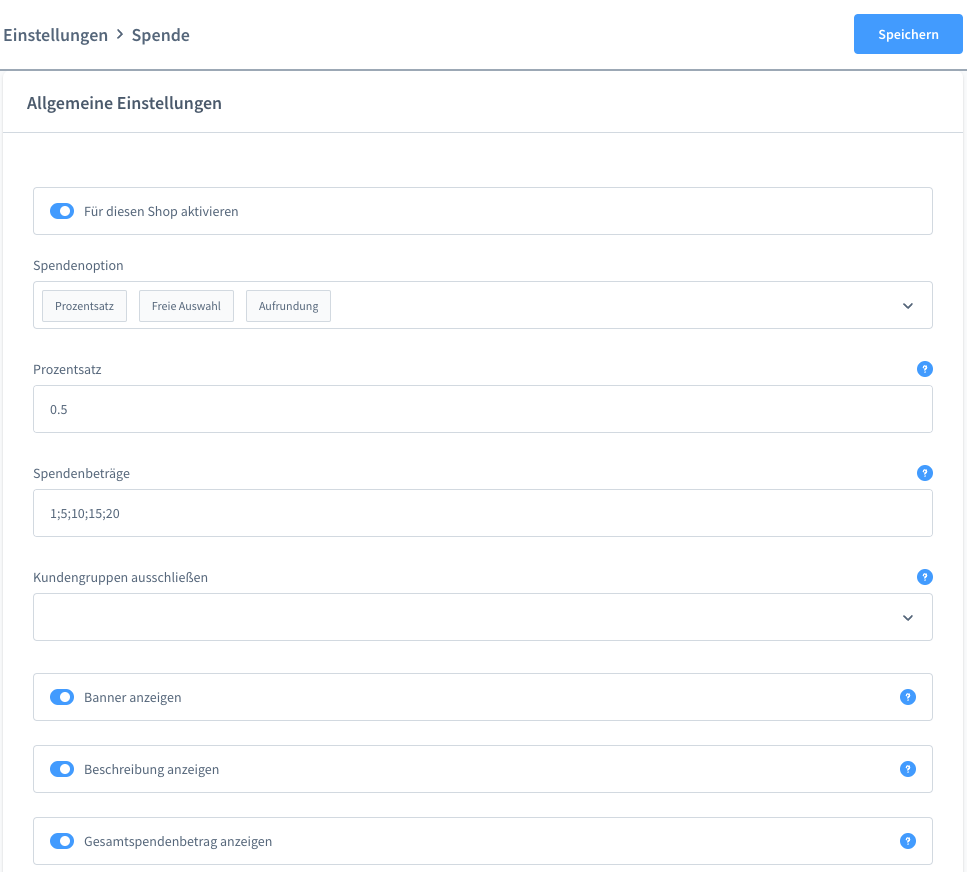
| Setting | Description |
|---|---|
| Sales channels | Select the sales channel. |
| Activate for this shop | Enables the donation feature for this shop. |
| Donation option | Defines the desired donation type(s) (multiple selection possible): Voluntary option (the customer selects from predefined values), Percentage (share of the total order in %) and Rounding (the order total is rounded up to the next whole number and the difference is donated – e.g. an order of €24.85 becomes €25.00 and €0.15 is donated). |
| Donation amounts | Predefined values for the voluntary option – separated by semicolons. |
| Exclude customer groups | Customer groups for which the donation option is not shown. |
| Show banner | Displays the organisation banner in the modal window. |
| Show description | Shows all information about the organisation in the shop. |
| Show total donated amount | Displays the total amount donated. |
| No donation option | The "no donation" option is shown in the checkout. |
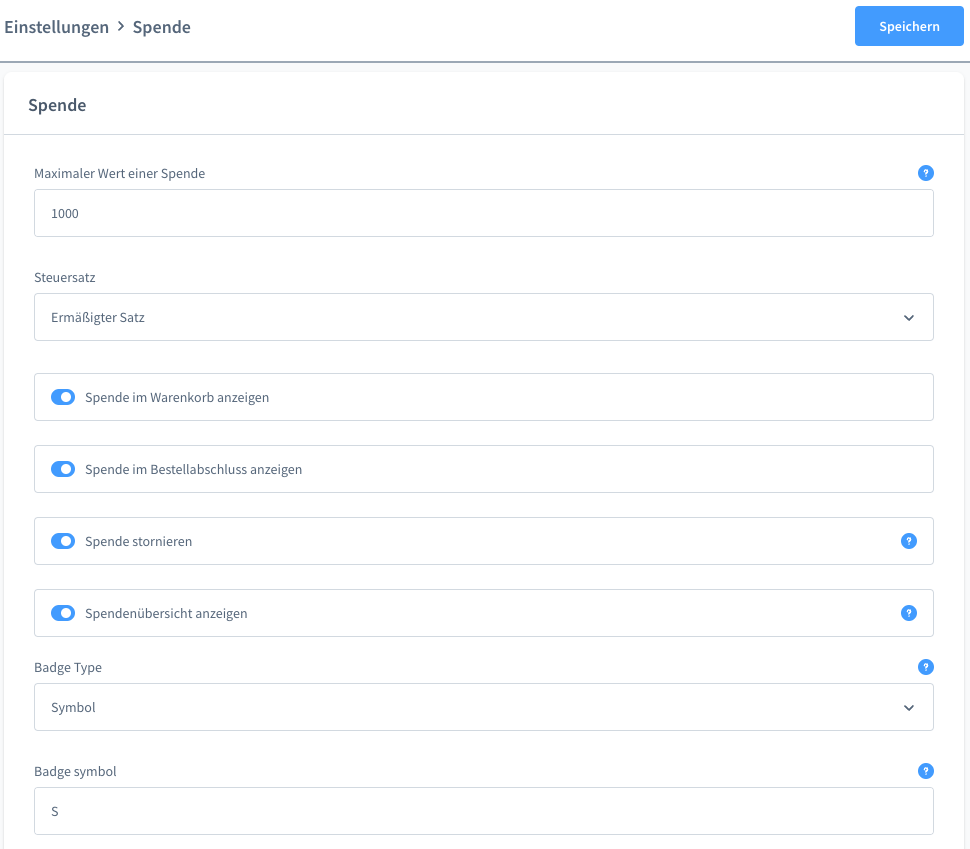
Donation
| Setting | Description |
|---|---|
| Maximum donation value | Sets the maximum value of a single donation. |
| Tax rate | Select the tax rate to apply. |
| Show donation in cart | Shows the donation option in the shopping cart. |
| Show donation at order completion | Shows the donation option at order completion. |
| Cancel donation | Cancels the donation automatically when the order is cancelled. |
| Show donation overview | Shows the donation overview in the customer account. |
| Badge type | Choose between logo and symbol. |
| Badge symbol | A meaningful symbol for the donation – displayed as a badge in the checkout. |
🏢 Organisations
Under Organisations you manage all charitable organisations that your customers can support during checkout.
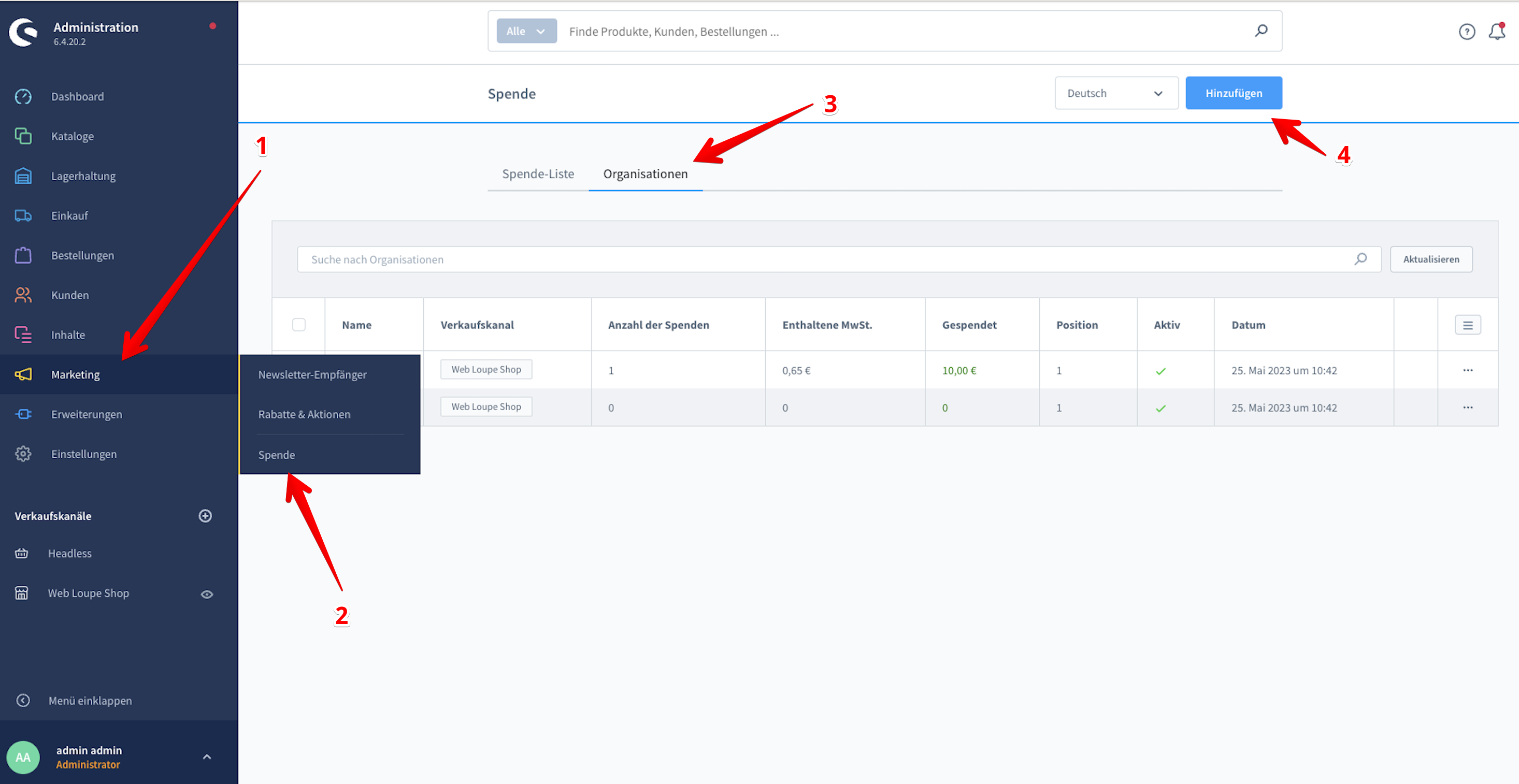
Create Organisation
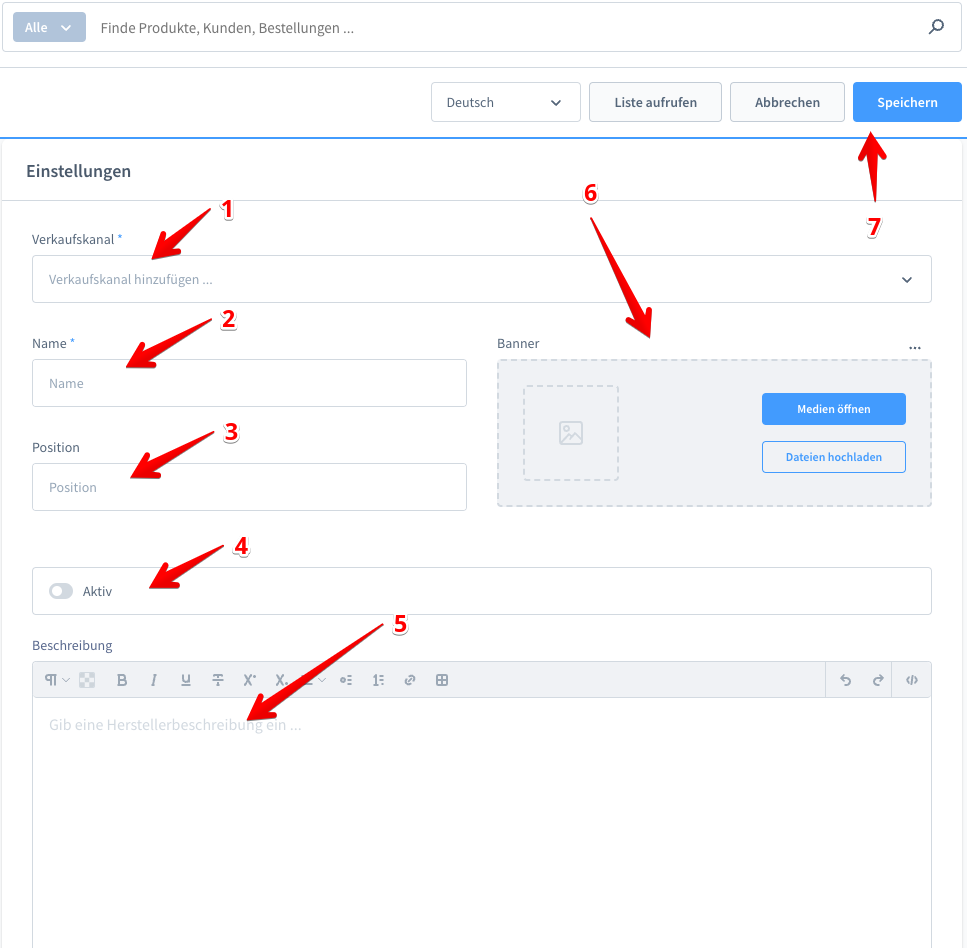
| # | Field | Description |
|---|---|---|
| 1 | Sales channel | Select the sales channel. |
| 2 | Name | Name of the organisation. Used as the issuer on the donation receipt and as the email sender name. |
| 3 | Position | Order/position in the selection. |
| 4 | Active | Activate the organisation. |
| 5 | Description | Description of the organisation. |
| 6 | Address | Address of the organisation – printed as the issuer address on the donation receipt. |
| 7 | Tax note | This organisation's tax-exemption / non-profit statement required by the tax authority, printed on its receipts. |
| 8 | Banner | Select the organisation banner via the Media Manager (one media item, recommended size: 768 × 120). |
| 9 | Save | Save the organisation. |
🧾 Donation Receipts (In-App Purchase)
The Donation Receipts feature automatically generates a PDF donation receipt for every order that contains a donation and emails it to the customer.
In-App Purchase
Donation receipts are an In-App Purchase. The feature is only active once the "Donation receipts (In-App Purchase)" purchase has been unlocked; until then it stays inactive.
Automatic sending
As soon as a customer places an order that contains a donation, the PDF donation receipt is generated and sent to the customer automatically – once per donation – by email. No manual "send" button is required.
Configuration
Issuer = the selected organisation
The issuer of the receipt is the organisation the donation was made to. Its name, address and tax note are therefore maintained per organisation (see Create Organisation) – not in this plugin configuration. Here you only define the email template.
You will find the email settings in the plugin configuration, in the card Donation receipts (In-App Purchase).
| Setting | Description |
|---|---|
| Receipt email subject | Subject of the email. If left empty, the default subject is used. |
| Receipt email body | Body of the email (HTML). Supports placeholders: {{ order.* }} (e.g. {{ order.orderNumber }}, {{ order.orderCustomer.firstName }}), {{ donation.* }} and {{ charity.* }} (e.g. {{ charity.name }}). If left empty, the default template is used. |
Downloading the receipt
Besides the automatic email, the PDF receipt can also be downloaded:
- As a merchant from the donation list in the admin area.
- As a customer via "My donations" in the storefront customer account – a "Download" link is available there for each donation.
Prerequisites for sending
A donation receipt is only sent if (a) the order contains a donation and (b) the In-App Purchase is active. For actual delivery, Shopware's mailer / sender email must also be configured correctly – otherwise the email is only logged and not delivered.
💡 Typical Use Cases
Charitable initiatives in the shop
Embed donation campaigns directly into the purchase process and give customers the opportunity to do good with just a few clicks.
Seasonal campaigns
Activate and deactivate organisations per sales channel – ideal for time-limited initiatives tied to specific occasions.
Customer loyalty & brand image
Visible social commitment strengthens trust and your customers' loyalty to your shop.
⭐ Benefits for Shop Operators
- Social commitment visibly integrated into the purchase process
- Flexible donation types: free amounts, percentage or rounding
- Full control per sales channel and customer group
- Transparent display of the total donated amount
- Stronger customer loyalty through visible commitment
🧩 Feature Set
- Donation campaigns in the cart and at order completion
- Any number of organisations with banner, description and position
- Three donation types: voluntary amounts, percentage and rounding
- Per-sales-channel configuration including customer group exclusion
- Customisable badge (logo or symbol) in the checkout
- Donation overview in the customer account and display of the total amount
- Automatic cancellation of the donation for cancelled orders
- Automatic PDF donation receipts by email, incl. download in the admin and customer account (In-App Purchase)
📬 Support
For questions, suggestions for improvement, or individual customisations, contact us by email at support@cnk-plugins.de.