Additional fields on the detail page - Custom fields
This plugin shows your product custom fields right on the product detail page – in the buy box next to the add-to-cart button, exactly where customers make their decision. Selected fields can also appear in the listing.
The optional Starter package (in-app purchase) presents links and files professionally: custom link text, buttons with an icon, PDF downloads and images from media custom fields.
Warning
Important: The following plugins must be installed and activated once to use this plugin.
Highlights
- 🧩 Any number of custom fields on the detail page – with your own display name and free order
- 🗂️ Also in the listing – selectable per field
- 🔗 Web addresses become links automatically – long addresses wrap
- 🌍 Multilingual – fields maintained only in the default language also appear in the other languages
- ⭐ Starter package – link text, buttons with an icon, PDF downloads and images

- Plugin & Starter package
- Installation
- Configuration
- Display in the shop
- Starter package: links & media
- FAQ
💳 Plugin & Starter package
All existing features are included in the plugin. You can add the Starter package as an optional in-app purchase directly in Shopware.
| Feature | Plugin | Starter |
|---|---|---|
| Any number of custom fields on the detail page | ✅ | ✅ |
| Display name, snippet and order per field | ✅ | ✅ |
| Display in the listing (per field) | ✅ | ✅ |
| Text, number, date, price, select, checkbox, text editor | ✅ | ✅ |
| Web addresses (http/https) as clickable links | ✅ | ✅ |
| Custom link text instead of the web address | – | ✅ |
| Display as a button or a button with an icon | – | ✅ |
| Selectable link target (new tab / same window) | – | ✅ |
| Media custom fields: documents as a download, images as a preview | – | ✅ |
Nothing is hidden
The Starter settings stay visible in the administration – with a notice and an Unlock now button. Shopware shows the current price in the in-app purchase dialog. The Starter package is available from Shopware 6.6.9 (plugin version 6.1.0 or 7.1.0).
🔧 Installation
- Install and activate CNK Foundation and Additional information on the detail page (see the notice above).
- Install and activate this plugin from the Shopware Store or as a ZIP under Extensions > My extensions.
- Create the product custom fields if they do not exist yet: Settings > System > Custom fields – the set must be assigned to Products.
- Fill in the values on the product (Catalogues > Products > product > Specifications).
⚙️ Configuration
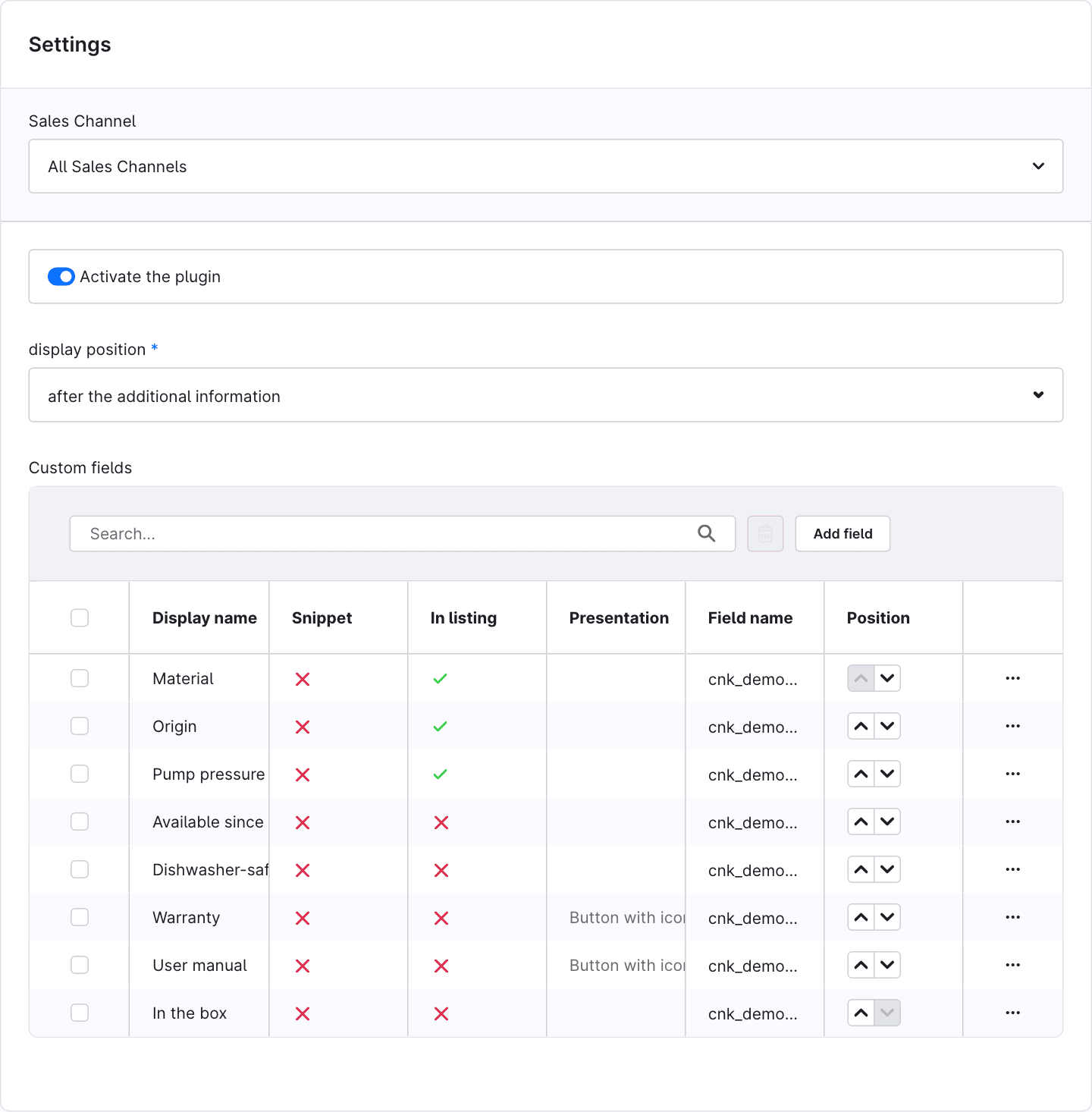
Open the configuration under Extensions > My extensions > Additional fields on the detail page > Configure. All settings can be overridden per sales channel.
| Setting | Description | Default |
|---|---|---|
| Activate the plugin | Show the custom fields in the shop | on |
| Display position | Before or after the additional information (EAN, manufacturer number …) | after the additional information |
| Custom fields | The fields to display – with display name, snippet, listing and order | empty |
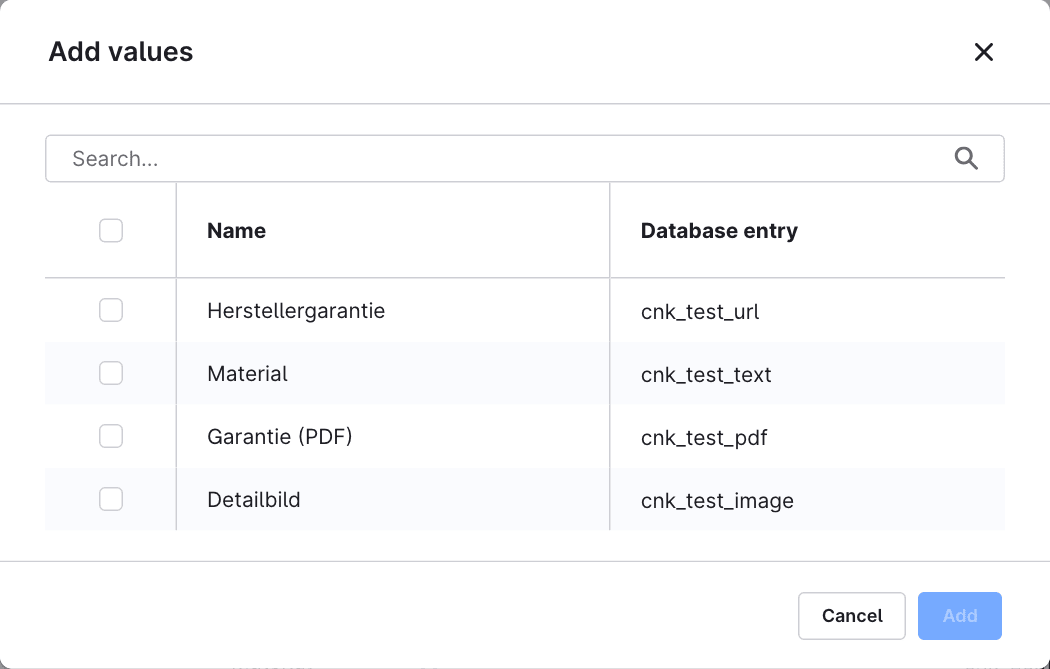
Add custom fields
Click Add field, select the product custom fields you want and confirm with Add.
Edit fields
| Column | Meaning |
|---|---|
| Display name | Label in the shop. Change it via the action menu (…) > Edit. Without a change, the label of the custom field in the respective language is used. |
| Snippet | Use the snippet customFields.<technical name> instead of the display name – ideal for multilingual shops. |
| In listing | Also show the field in the product boxes of the categories. |
| Presentation | Link text and display (Starter package). |
| Field name | Technical name of the custom field. |
| Position | Order on the product page. |
Then save the configuration with Save.
🛍️ Display in the shop
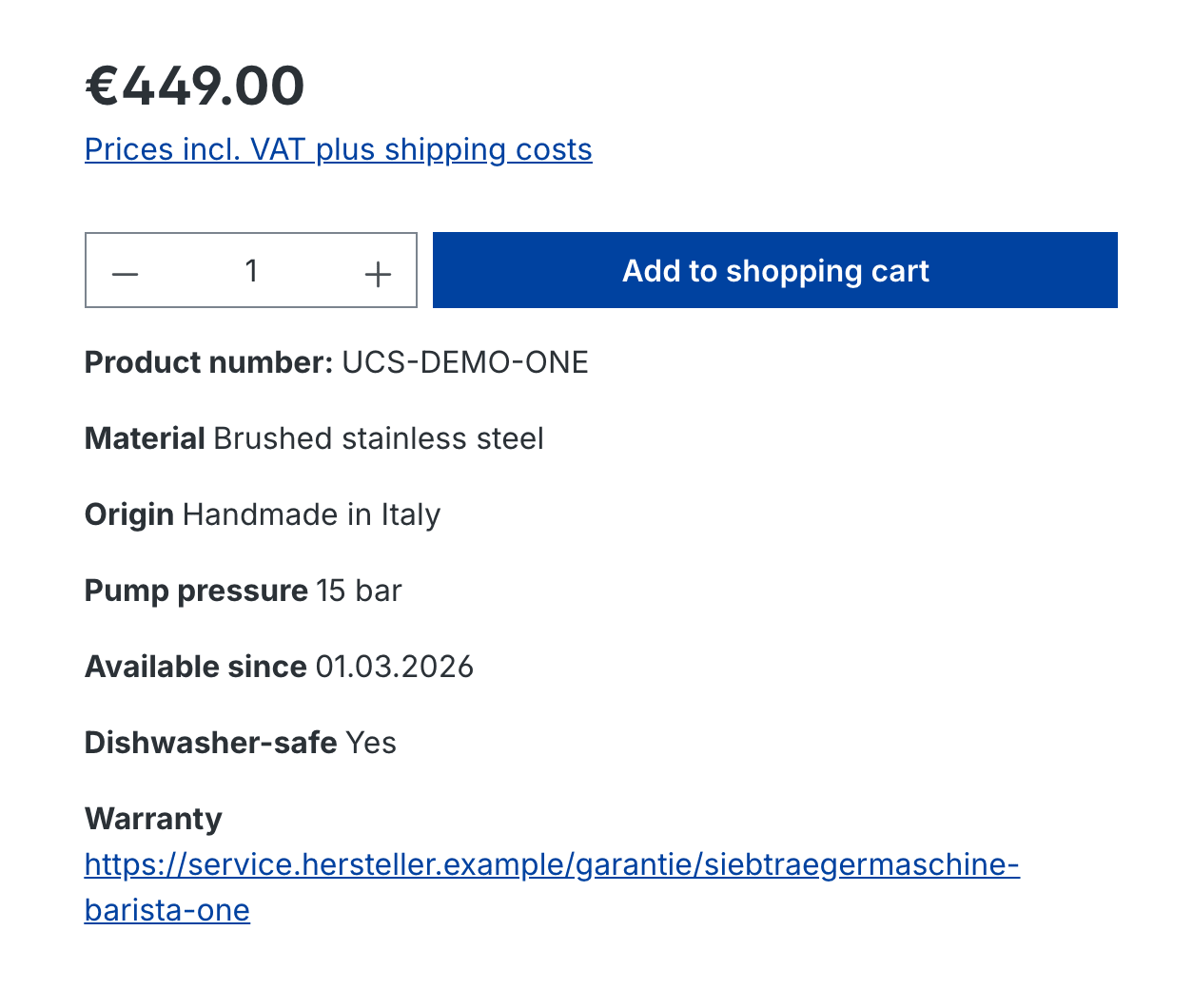
The fields appear in the buy box of the product detail page. Values are formatted according to the field type:
| Field type | Display |
|---|---|
| Text, number | Value as entered |
| Date / time | DD.MM.YYYY |
| Price | Gross price in the shop currency |
| Select field | Label of the selected option in the shop language |
| Checkbox / active switch | Yes / No |
| Text editor | Formatted text (HTML) |
| Text with a web address (http/https) | Clickable link, long addresses wrap |
| Media field | Download or image – with the Starter package |
Listing
Fields with the In listing option also appear in the product boxes of the category pages (box layout "Standard").

⭐ Starter package: links & media
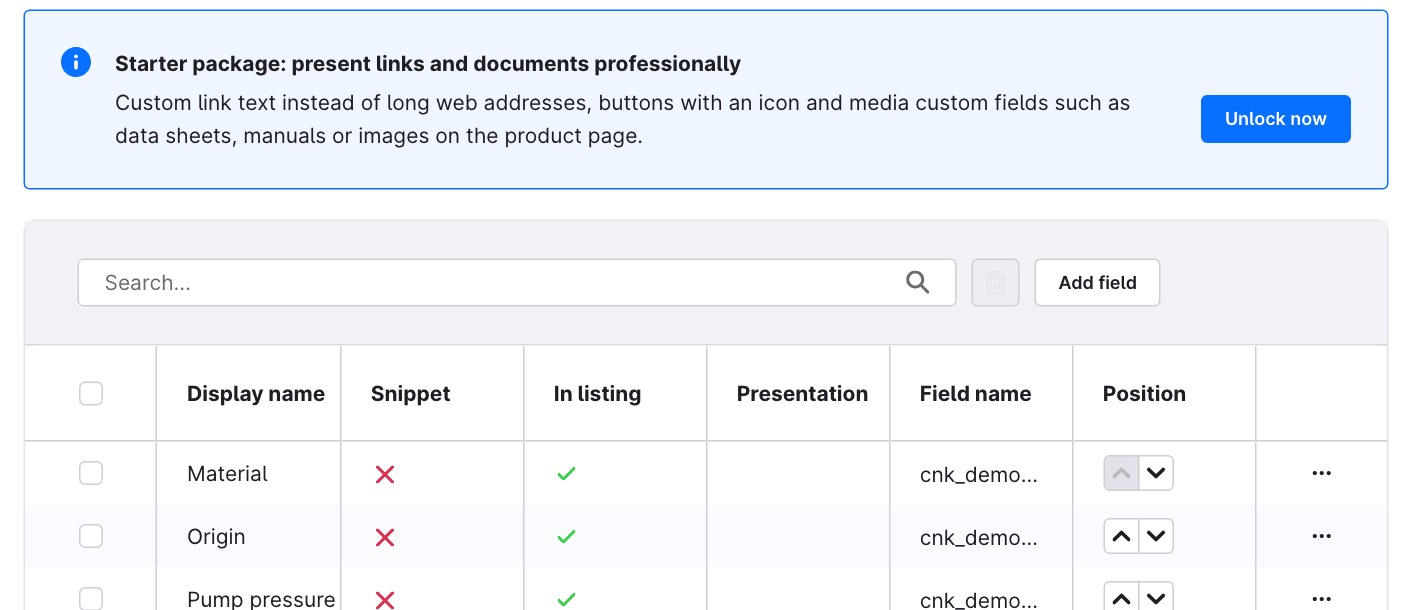
As long as the Starter package is not booked, the configuration shows a notice above the table with an Unlock now button. It opens Shopware's in-app purchase dialog.
Presentation per field
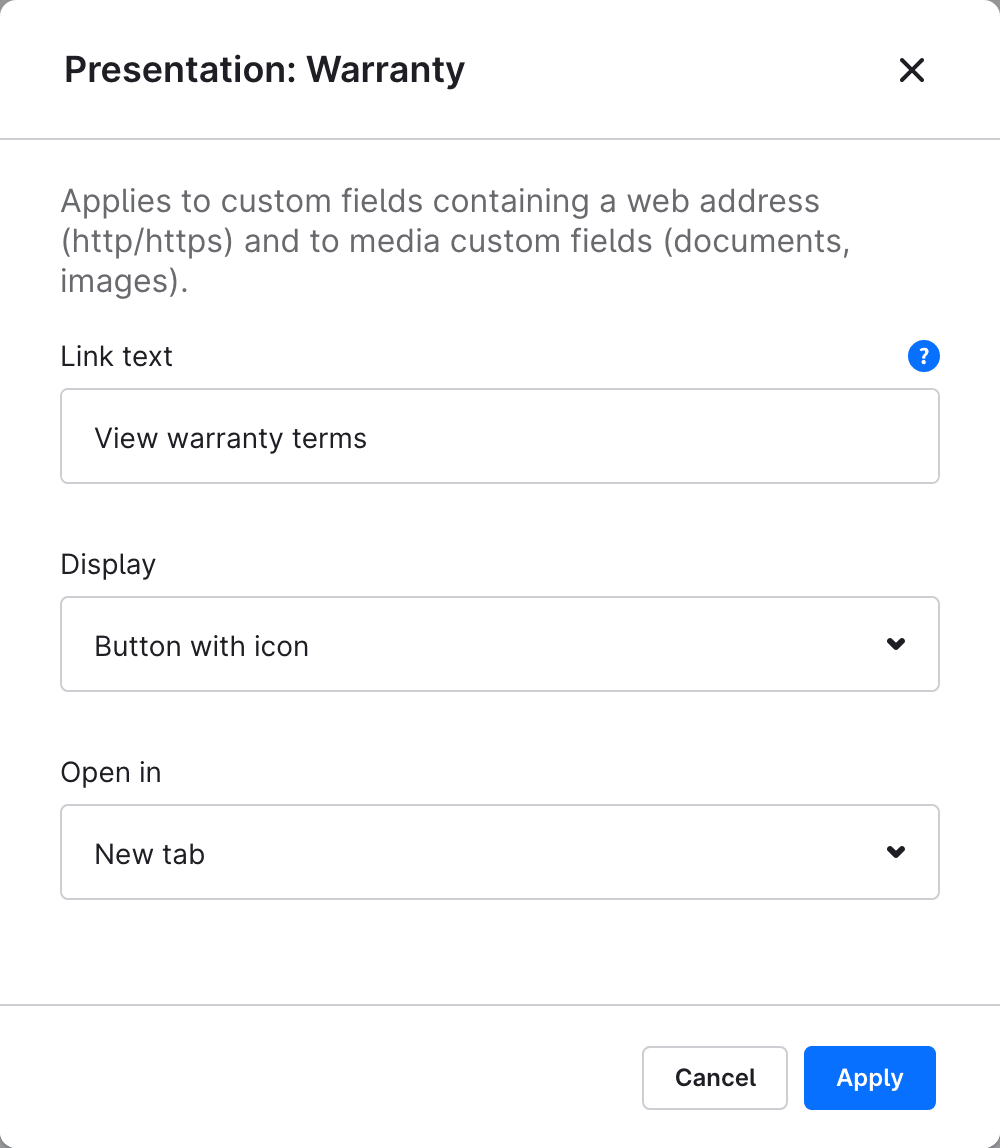
In the action menu (…) of a field, open Presentation (links & media):
| Setting | Description |
|---|---|
| Link text | Shown instead of the web address or file name, e.g. "View warranty terms". Leave empty to show the address or file name. |
| Display | Link, button or button with icon |
| Open in | New tab or same window |
The settings apply to custom fields containing a web address and to media custom fields. Confirm with Apply and save the configuration.
Media custom fields: documents and images
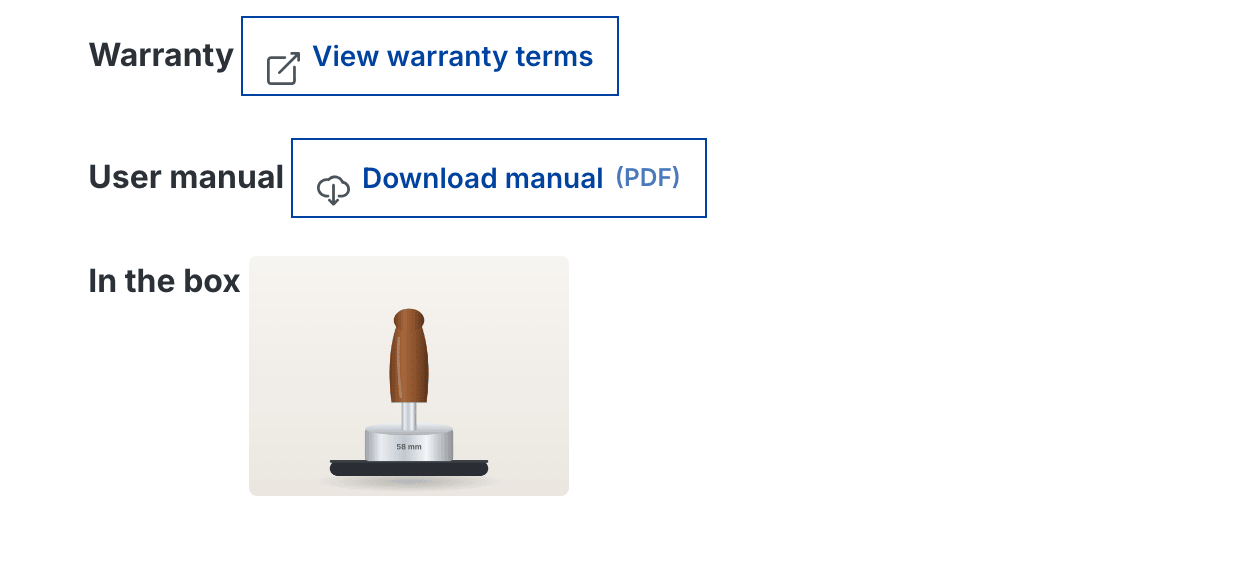
Create a field of type Media field under Settings > System > Custom fields and select the file on the product. With the Starter package the plugin shows:
- Documents (e.g. PDF data sheet, warranty, user manual) as a download – with the file type, e.g. "(PDF)"
- Images as a preview that opens the full-size image on click
❓ FAQ
My custom fields do not appear in the shop.
Check that Activate the plugin is on, the field is in the table and the product has a value for this field. Then clear the cache (Settings > System > Caches & indexes).
Why is my web address not a link?
Complete addresses with http:// or https:// and without spaces are recognised as links. Text editor fields are output unchanged as formatted text.
The fields are missing in another language.
From version 6.1.0 / 7.1.0, values maintained only in the default language are shown in all languages. For translated labels, use the label of the custom field or the Snippet option.
Is the Starter package available for Shopware 6.5 or 6.6.0–6.6.8?
No. In-app purchases are only available from Shopware 6.6.9. All other features are included on every supported version.
📬 Support
For questions, suggestions or custom adjustments, contact us by e-mail at support@cnk-plugins.de.