Product Images in the Backend
The Product Images in the Backend plugin displays product images across the most important areas of the Shopware 6 administration. You and your team instantly recognise which article you are working on – for better clarity and noticeably faster day‑to‑day workflows.
No configuration is required: once activated, the plugin works right away and automatically adds an image column to the existing backend lists.
Highlights
- 🖼️ Product images in order line items, categories, reviews and search results
- ⚡ No configuration – active immediately after activation
- 🔀 Supports variants and inherited cover images
- 🔍 Hover preview: show an enlarged image on mouse‑over
- 🚀 Optimised thumbnails with internal caching for fast loading
- 🌙 Fully compatible with Shopware Dark Mode
- 🌍 Multilingual plugin (German, English, French)
🔧 Installation & Activation
- Get the plugin from the Shopware Store, or upload it under Extensions → My extensions.
- Install the plugin in the Plugin Manager.
- Activate the plugin.
- Clear the cache and reload the administration.
No further configuration is required – there is intentionally no settings page. After activation the image columns appear automatically in all supported areas.
Note
So the new admin components are loaded, reload the browser cache / administration once after activation.
📍 Where do the images appear?
The plugin extends four central backend areas, each with a compact image column.
Order line items
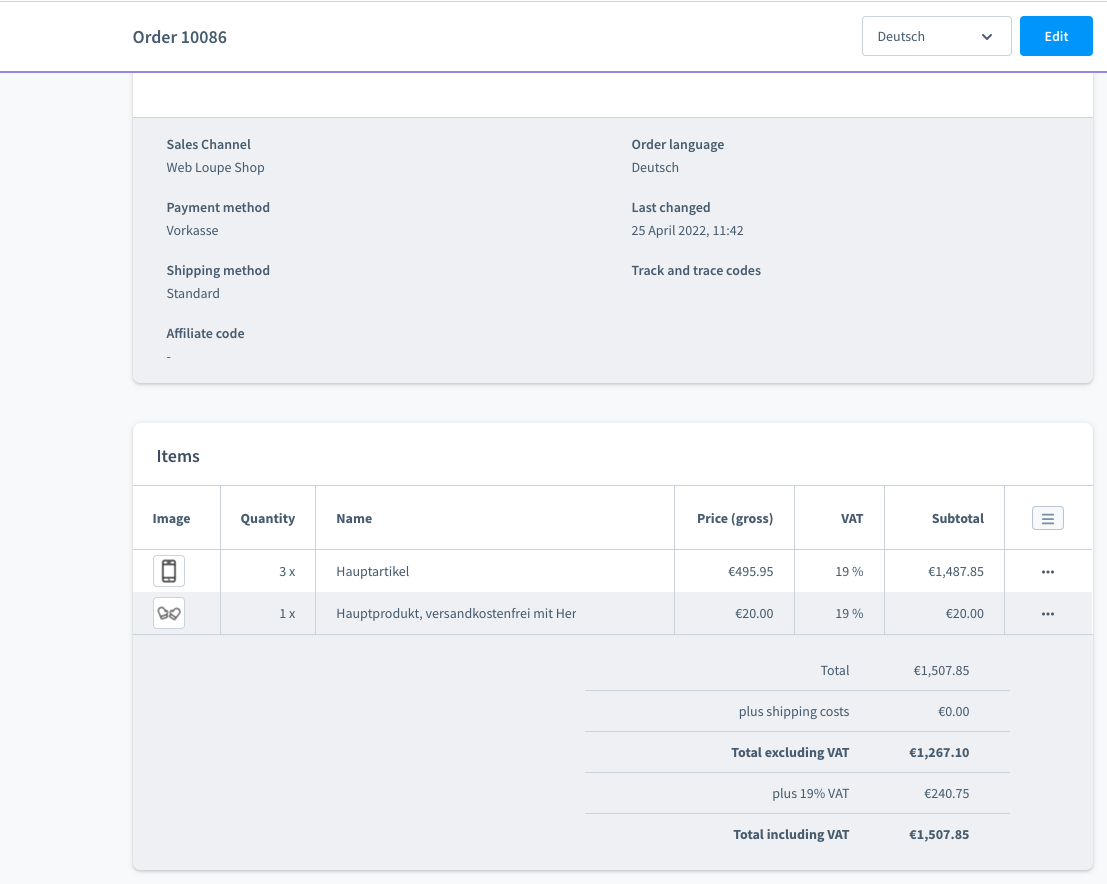
In the order overview (Order → detail view) an additional Image column is placed in front of the line items. You immediately see which product was ordered – without having to read the article name. The column is kept narrow (40 px) and does not disturb the existing line‑item layout.
Product reviews
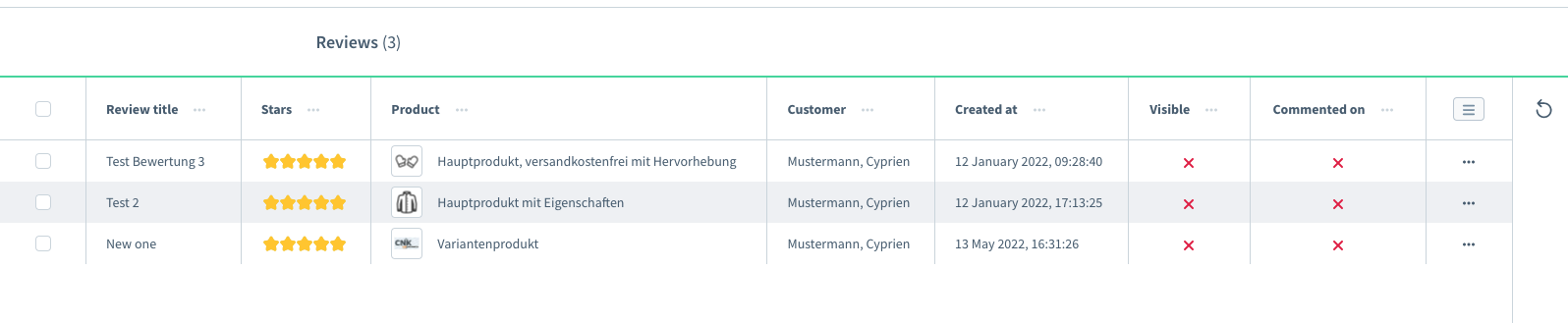
In the reviews list the product thumbnail sits right next to every rating. When moderating large numbers of reviews you can tell at a glance which article a review belongs to.
Categories
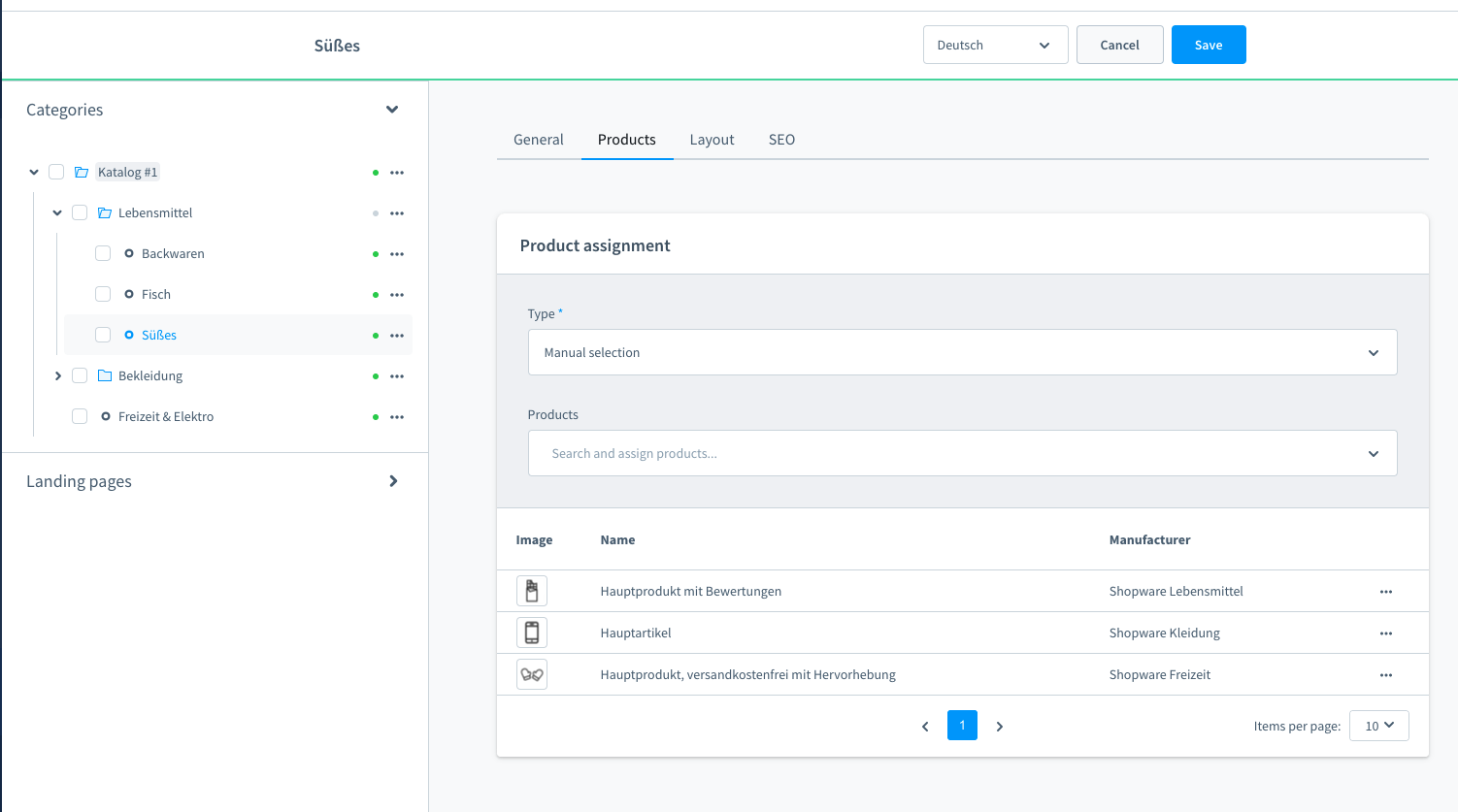
When assigning products to a category, each row shows its product image. This reduces mix‑ups when articles have similar names or numbers.
Search results
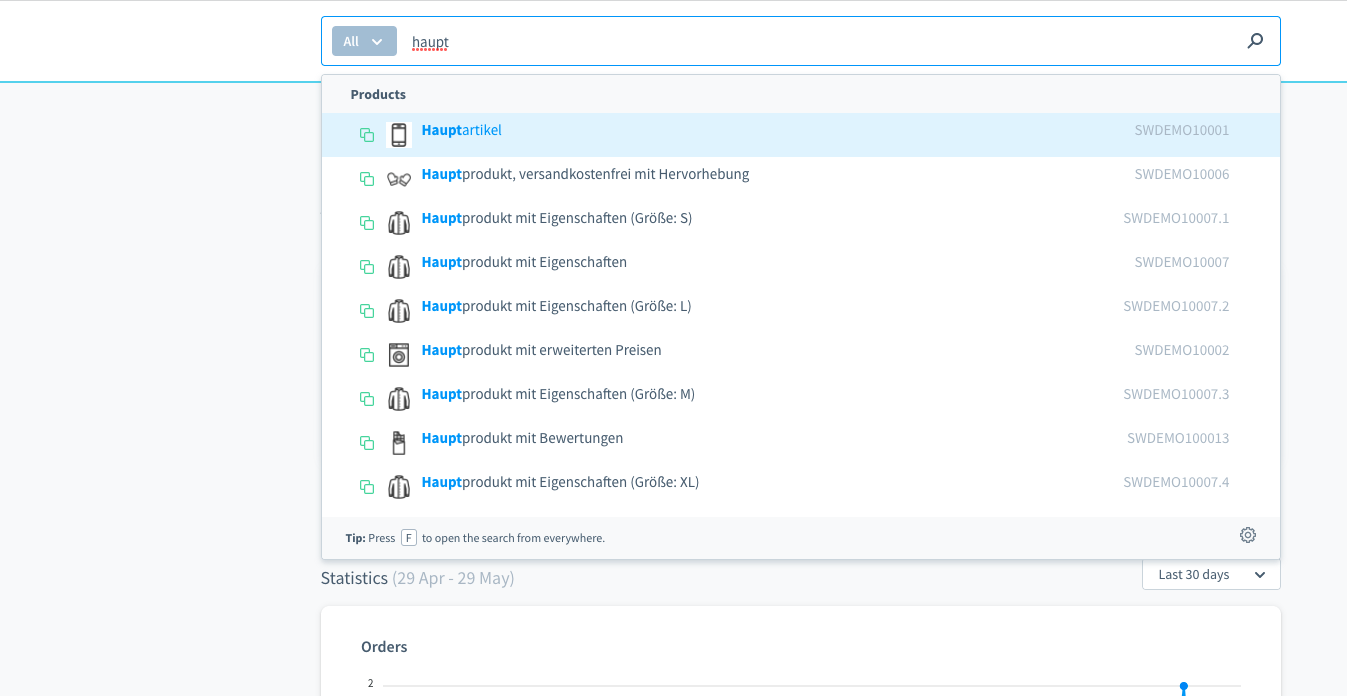
Product images are also shown in the admin search results (global search bar). You find the desired article faster because the image serves as visual orientation.
🔍 Hover preview
Hover over a thumbnail with the mouse and the image is shown in an enlarged form. This lets you check details without opening the product detail page. As soon as the cursor leaves the row, the preview is hidden again automatically.
🔀 Variants & inherited images
The plugin determines the image to display in a sensible order, so a suitable image appears whenever possible:
- Cover image of the variant (if available)
- inherited cover image of the parent product
- first image from the parent product's gallery
- first image from the variant's gallery
If none of these images exist, the cell simply stays empty – without an error message or placeholder.
✅ Your benefits
- Immediate visual orientation across the whole backend
- Fewer mistakes when editing orders and categories
- Time savings when managing large product catalogues
- Optimised thumbnails and internal caching for fast loading
🧩 Compatibility
- Supports product variants (variant image or inherited cover image)
- Fully compatible with Shopware Dark Mode
- Compatible with common custom admin grids and B2B extensions
- For Shopware 6.5+ and 6.7
🛠️ Technical reference
The plugin works purely in the administration front end (Vue) and requires no database migrations or storefront changes.
- Extends components such as
sw-order-line-items-grid,sw-product-list,sw-category-detail-products,sw-review-listand the global search bar. - Image data is loaded through the product repository API (associations
cover.mediaandmedia.media). - Internal media and product caching avoids repeated queries and keeps loading times low.
- No external API, no storage of additional data.
❓ FAQ
Does the plugin work with product variants?
Yes. It shows the variant image if available, otherwise the inherited parent product image.
Is any configuration needed after installation?
No. The plugin works immediately after activation, without any extra settings. There is intentionally no configuration page.
Does the plugin affect performance?
No. Optimised thumbnails are used and the loaded image data is cached, so loading time is barely affected.
Does the plugin support the admin dark mode?
Yes, the plugin is fully compatible with the Shopware dark mode.
Does it work together with other admin extensions?
Yes. It is compatible with common custom admin grids and B2B extensions.
What happens if a product has no image?
The image cell simply stays empty – no placeholder and no error message are shown.
📬 Support
For suggestions or individual adjustments that cannot be covered by the plugin, contact us by email at support@cnk-plugins.de.