CSV Export for Product Data – Email & FTPS Delivery
The plugin enables flexible export of Shopware 6 products and variants as a CSV file – either from the product overview (including active filters and multi-selection), via individual profiles, through the Shopware Flow Builder, or fully automated with email and FTPS delivery. Using export profiles, the exported fields and their column order can be freely defined.
Highlights
- ✅ Export products & variants as CSV – flexible and configurable
- 🖱️ Export directly from the product listing – including active filters and multi-selection
- 🔀 Optionally include all variants of a parent product (per-profile switch)
- ✉️ Send by email or upload via FTPS
- ⚙️ Trigger via the Shopware Flow Builder or run manually in the admin
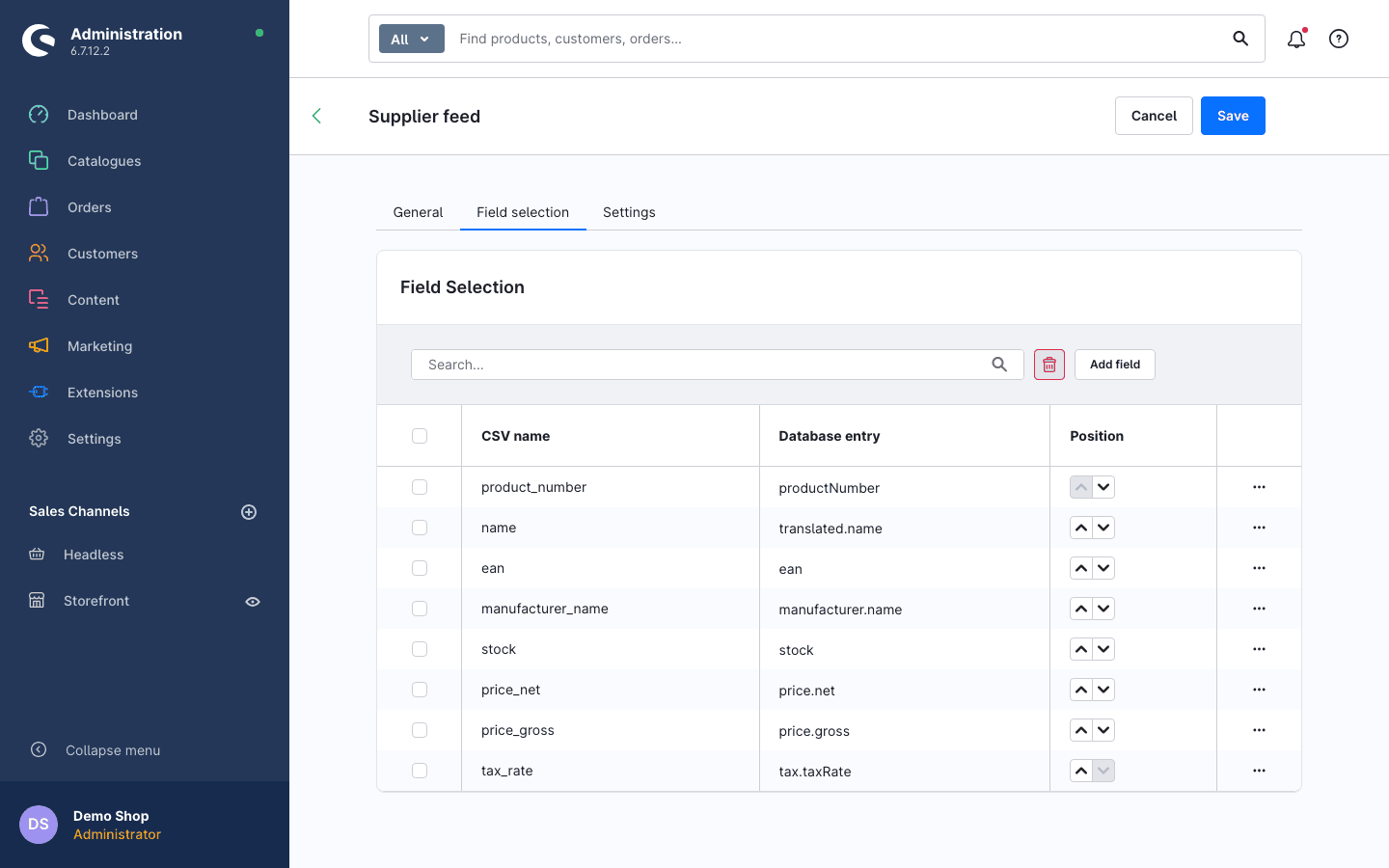
- 🧩 Freely configurable export fields with column order
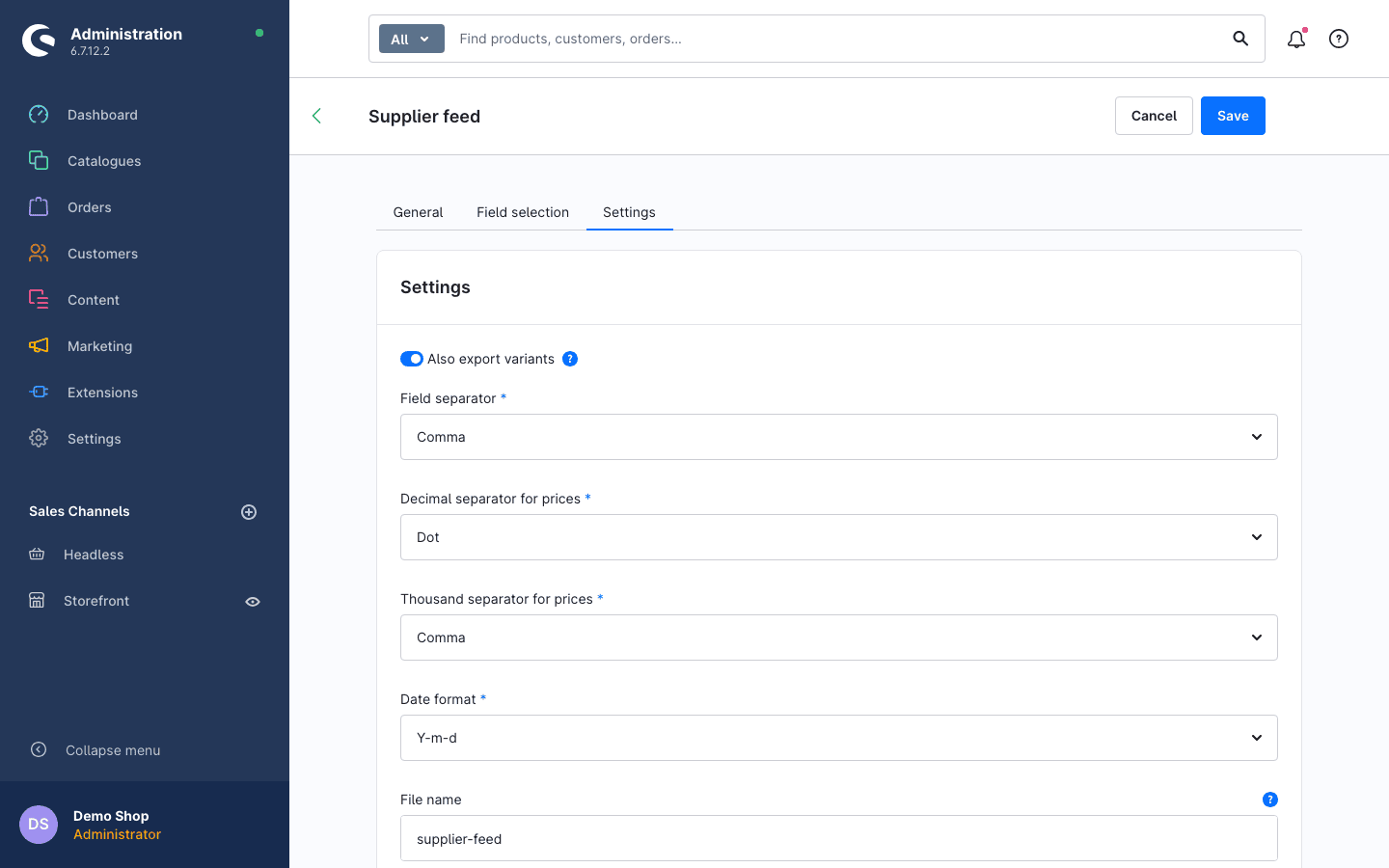
- 🛠️ CSV format configurable (separator, decimal/thousands separator, date, timezone, encoding)
- 🗃️ Prices, stock, categories, manufacturers, properties, SEO & custom fields
- 📊 Export history with re-download of generated files and progress tracking
❓ FAQ
Can I deliver exports by email or FTPS?
Yes. Using the Shopware Flow Builder, the exported CSV file can be sent by email or uploaded via FTPS – for example, to deliver the ordered products automatically when an order is placed. Exports can also be run manually in the admin or via the CLI.
Is plain, unencrypted FTP supported?
No. Files are only transferred via explicit FTPS (AUTH TLS), usually on port 21. If the server does not offer FTPS, the connection test and the upload fail. The server certificate is verified by default; self-signed certificates can be allowed in the plugin configuration.
Can I export straight from the product list?
Yes. In the product overview you can export the currently filtered list or a multi-selection of products directly, using a chosen profile.
Can I export product variants?
Yes. A per-profile switch lets you optionally include all variants of a parent product in the export.
Can I create custom export profiles?
Yes. You can create individual export profiles and determine which fields are exported and in what order.
Are custom fields supported?
Yes. The plugin supports product and variant custom fields in addition to the built-in field catalog.
How many products can I export at once?
The maximum number of products is configurable in the plugin settings (default 50,000). Very large datasets can also be exported via CLI.
Which format can I export to?
Products are exported as CSV. The CSV format is fully configurable (separator, decimal and thousands separators, date format, timezone, encoding).
🔧 Installation
- Installation via the Shopware Store or by uploading the ZIP
- Activate the plugin in the Shopware admin
- Requires Shopware 6.7
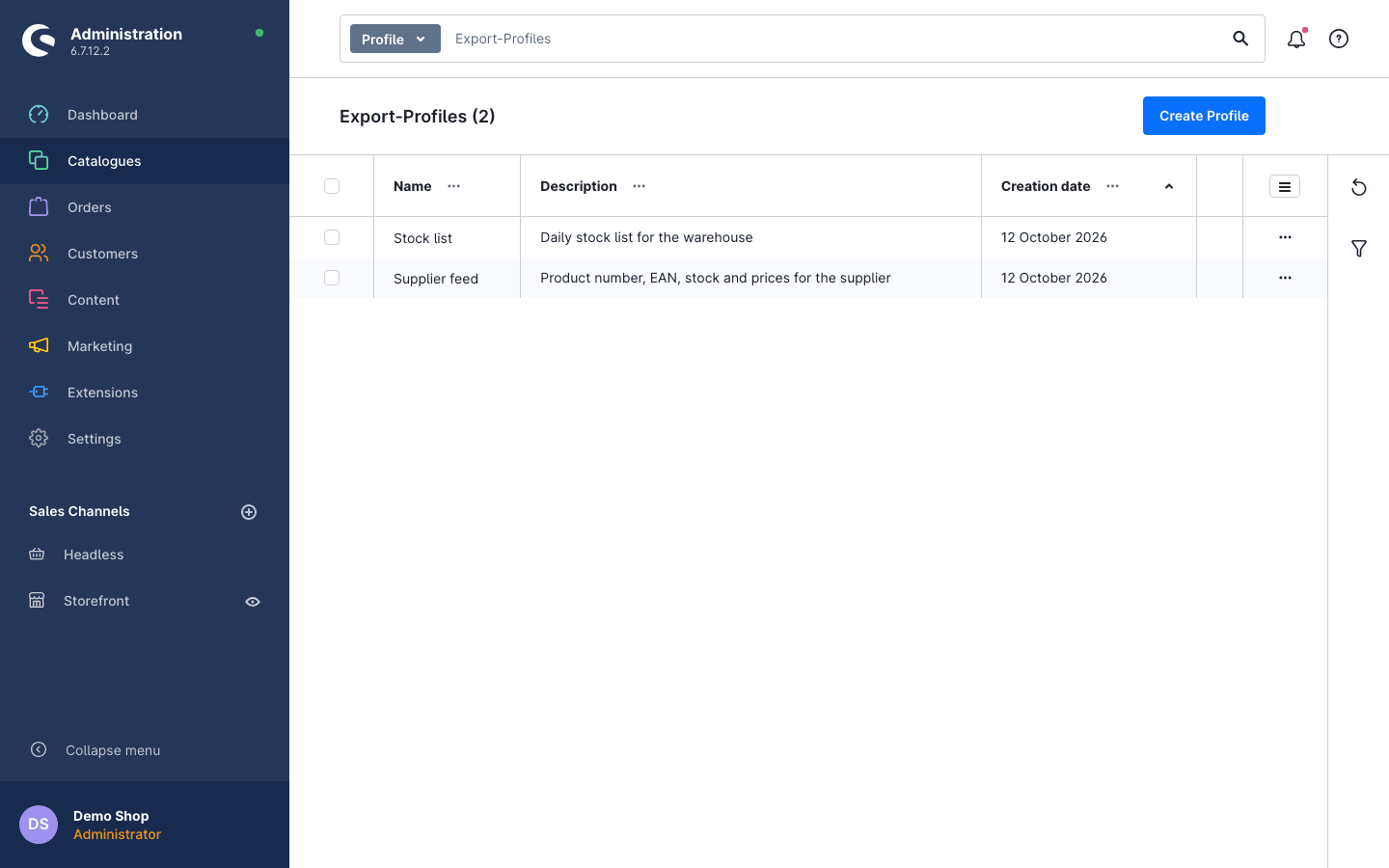
🧩 Manage Profiles
Export profiles define which data is included in the CSV file and in what order it appears. Profiles are located in the Shopware admin under Catalogues > CSV-Product-Export > Profiles.
Within a profile you can specifically define which fields should be included in the exported CSV file. Using the field picker, product fields can be individually selected and arranged – the order of fields in the profile corresponds to the column order in the CSV file.
A profile also carries the "include variants" switch, which optionally exports all variants of a parent product.
📋 Export options (from version 7.2.0)
In a profile's Configuration tab, the Export options card controls how the file is built – e.g. for a stock list for customers or suppliers. All options default to values that leave existing exports unchanged.
| Option | Description | Default |
|---|---|---|
| File format | CSV is always included. With the add-on More export formats also Excel (XLSX, frozen header row, numbers stored as numbers), JSON or XML | CSV |
| Variant options | Default (e.g. Blue \| L), Group: value (e.g. Size: L, Colour: Blue, sorted by group position) or one column per property group (e.g. columns "Size" and "Colour") | Default |
| Always 2 decimals for prices | Net/gross prices e.g. as 20.00; the profile's decimal separator is used | Off |
| Apply filters to selection and variants | The product listing filters (e.g. stock > 0) also apply when exporting selected products and to the variants. A selected parent without stock of its own still delivers its variants | Off |
| Without parent row | With variants enabled, only one row per variant is written | Off |
Example stock list
Include variants, variant options one column per property group, 2 decimals for prices, apply filters to selection, without parent row – filter the product listing by stock > 0, select the products and export.
⚙️ Default Settings
Global CSV formatting defaults are configured in the plugin settings and apply to every export (a profile can still be tailored per use case):
| Setting | Description | Default |
|---|---|---|
| Separator | CSV field separator (comma or semicolon) | ; |
| Decimal separator for prices | Decimal separator used in price values | . |
| Thousands separator for prices | Thousands separator used in price values | , |
| Date format | Format for date fields (e.g. d.m.Y, Y-m-d) | d.m.Y |
| Timezone | Timezone applied to date/time values | Europe/Berlin |
| Leave salutation fields empty | Output empty salutation instead of "No information" | Off |
| Export batch size | Number of records processed per loop iteration | 100 |
| Maximum number of products to export | Upper limit of products per export | 50000 |
| Accept self-signed FTPS server certificates | Only enable for FTPS servers with a self-signed certificate: the connection stays encrypted, but the server identity is no longer verified | Off |

🗂️ Variables
💡 Field names must be used exactly as shown in the left column.
The following overview lists all built-in variables that can be used in an export profile. Field names in the left column are configured in the profile; the right column describes the content. In addition to these, the field picker automatically shows the custom fields defined in your shop for products and variants.
Empty values stay empty in the CSV; the value 0 (e.g. stock 0 or price 0) is exported as "0".
🧾 General Product Data
| Field name | Description |
|---|---|
id | Product ID |
active | Active status |
product_number | Product number / SKU |
name | Product name |
description | Description |
ean | EAN / GTIN |
release_date | Release date |
rating_average | Average customer rating |
mark_as_topseller | Marked as topseller |
shipping_free | Free shipping |
sales | Number of sales |
canonical_product_id | Canonical product ID |
canonical_product_name | Canonical product name |
🔀 Variants
| Field name | Description |
|---|---|
variation | Variation data |
display_group | Variant display group |
variant_restrictions | Variant restrictions |
options | Variant options |
💶 Prices & Tax
| Field name | Description |
|---|---|
price_net | Net sales price |
price_gross | Gross sales price |
purchase_price_net | Net purchase (cost) price |
purchase_price_gross | Gross purchase (cost) price |
tax_name | Tax rule name |
tax_rate | Tax rate (%) |
📦 Stock, Quantities & Dimensions
| Field name | Description |
|---|---|
stock | Physical stock |
available_stock | Available stock |
available | Availability |
is_closeout | Closeout / clearance |
min_purchase | Minimum purchase quantity |
max_purchase | Maximum purchase quantity |
purchase_steps | Purchase step interval |
purchase_unit | Purchase unit |
reference_unit | Reference unit |
pack_unit | Pack unit label |
pack_unit_plural | Pack unit label (plural) |
unit_name | Unit of measurement |
weight | Weight |
width | Width |
height | Height |
length | Length |
delivery_time_names | Delivery time |
🗂️ Categories, Manufacturer & Properties
| Field name | Description |
|---|---|
category_ids | Category IDs |
category_names | Category names |
manufacturer_id | Manufacturer ID |
manufacturer_number | Manufacturer product number |
manufacturer_name | Manufacturer name |
properties | Product properties |
tags_names | Tags |
streams | Dynamic product groups |
🖼️ Media & Downloads
| Field name | Description |
|---|---|
cover_id | Cover image ID |
downloads | Digital product downloads |
🔎 SEO & Search
| Field name | Description |
|---|---|
meta_title | Meta title |
meta_description | Meta description |
keywords | SEO keywords |
custom_search_keywords | Custom search keywords |
slot_config | CMS layout configuration |
🧬 Custom Fields & Feature Sets
| Field name | Description |
|---|---|
custom_field_set_selection_active | Custom-field-set selection active |
feature_set_id | Product feature set ID |
Custom fields
In addition to the fields listed above, the field picker automatically shows the custom fields defined in your shop for products and variants.
Compatibility with third-party plugins
If the KILB Product Designer plugin is installed and active, the field picker additionally offers its "has design", "add-to-cart button disabled" and "target selector" values for mapping.
If the SWK Web Product Set plugin is installed and active, the field picker additionally offers its set ID, set name and set product number values for mapping.
⚡ Quick Export via the Product Overview
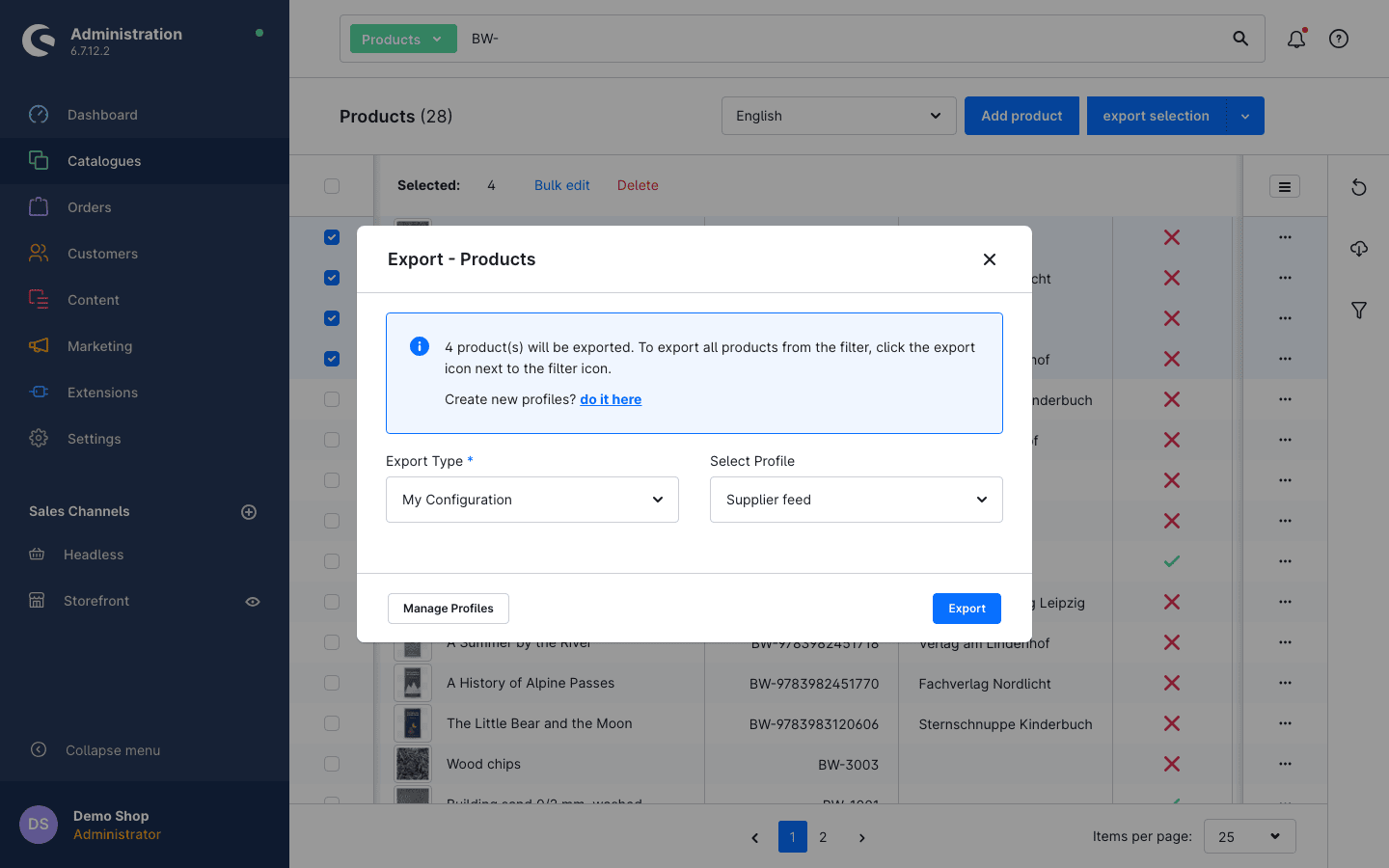
- Export the currently filtered product list directly
- Export a multi-selection of products (bulk export)
- Select a profile from the dropdown to determine the exported fields and format

✉️ Email & FTPS Delivery
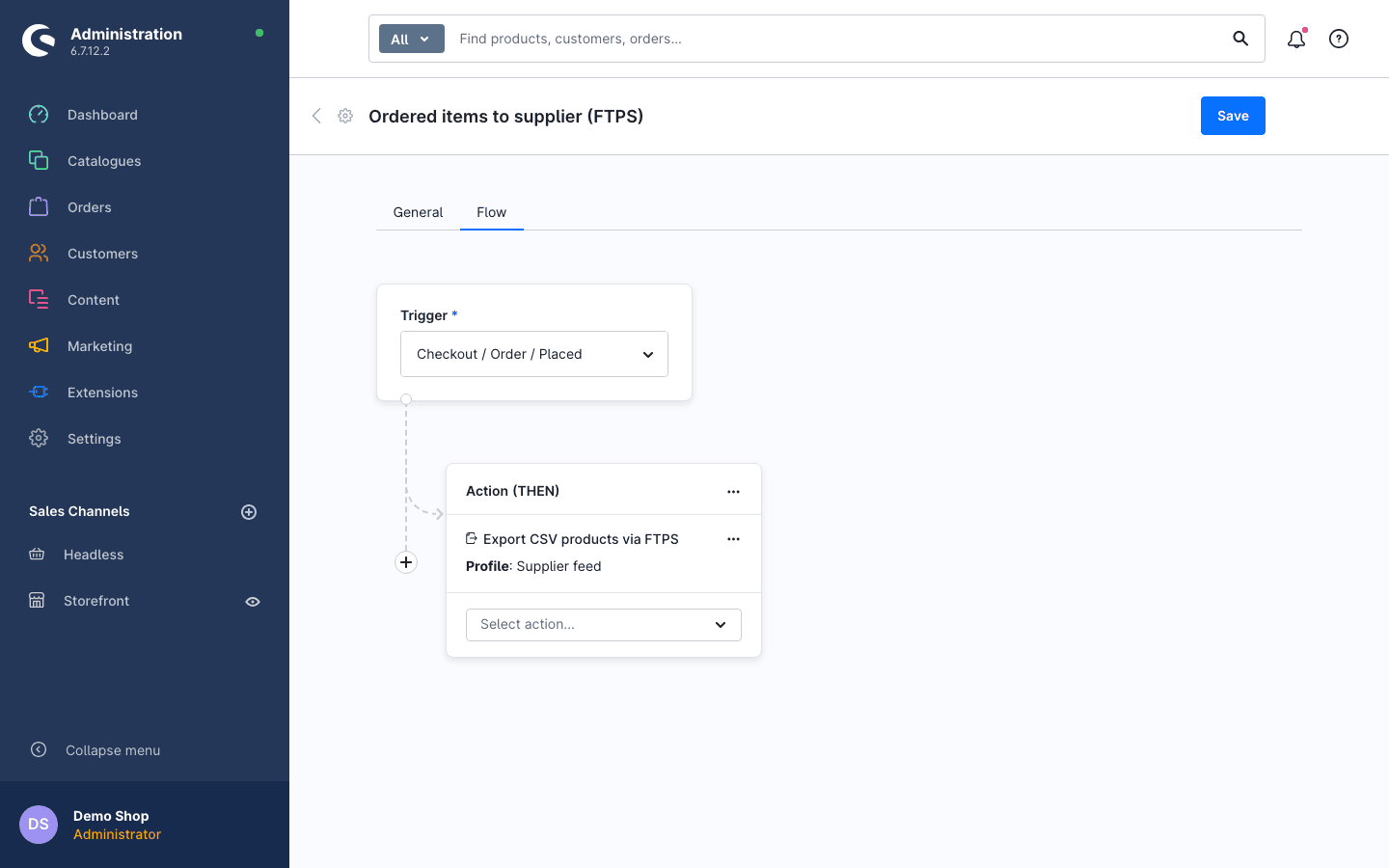
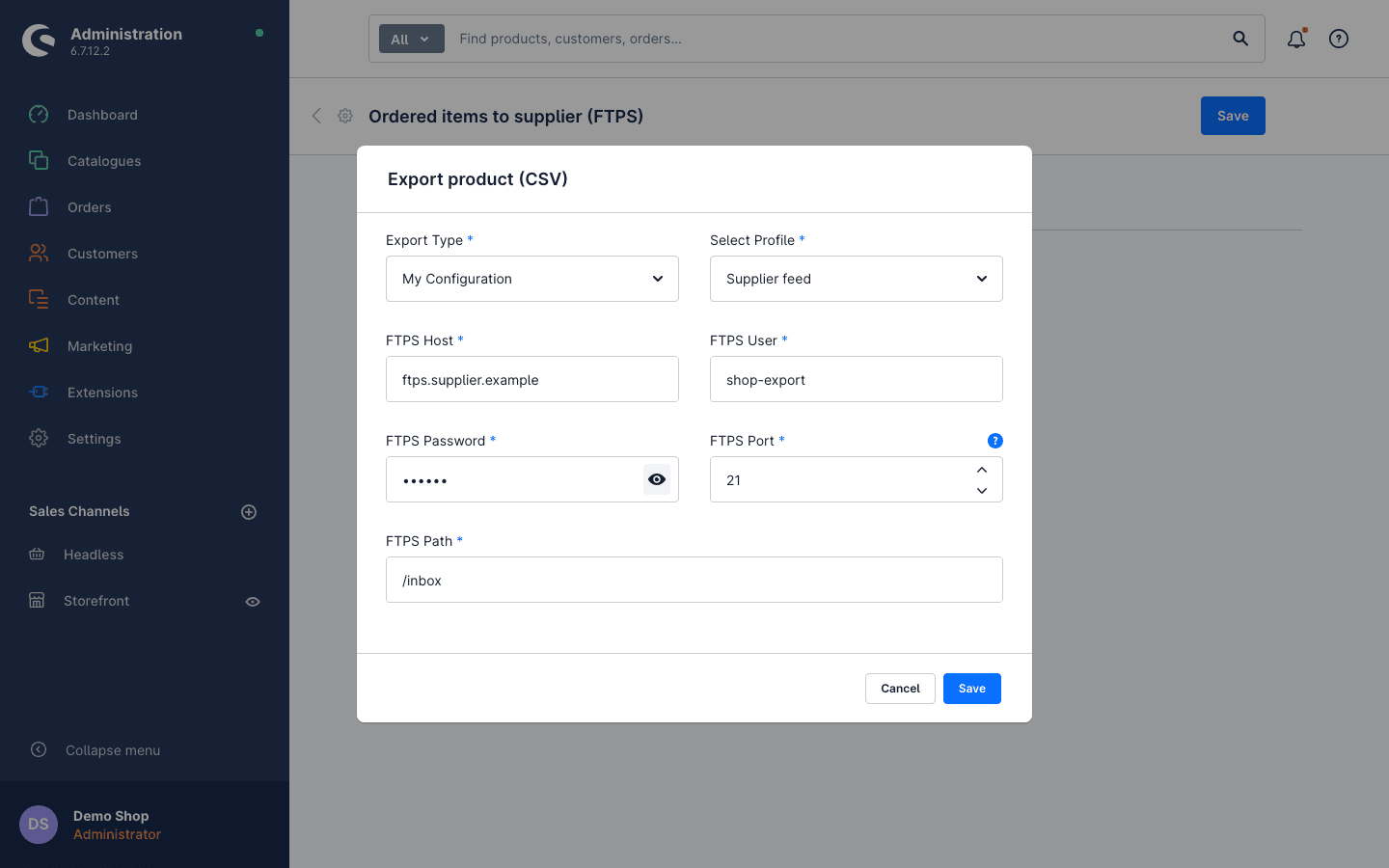
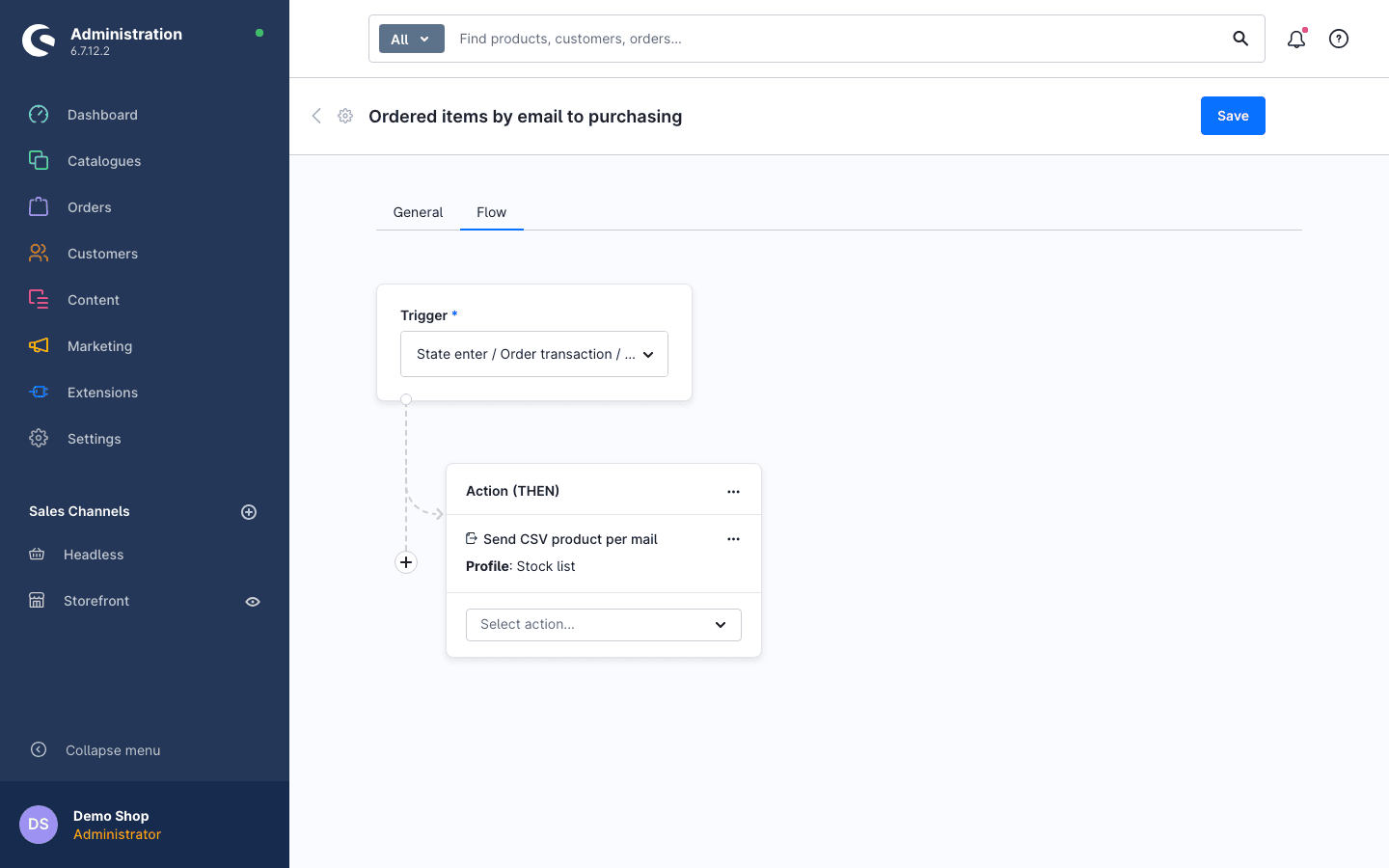
Using the Shopware Flow Builder, an export can be delivered automatically by email or uploaded via FTPS. A typical setup adds a flow that exports and sends the ordered products by email or FTPS when an order is placed.
The delivery format and field selection follow the export profile you choose in the flow action.
FTPS – plain FTP is not supported
Files are only transferred via explicit FTPS (AUTH TLS), usually on port 21. The control and the data channel are encrypted. If the server does not offer FTPS, the connection test and the upload fail – there is no fallback to unencrypted FTP. The server certificate and host name are verified by default. If your server uses a self-signed certificate, enable “Accept self-signed FTPS server certificates” in the plugin configuration.
If the delivery fails (FTPS upload or email), the export is marked as failed in the activity, the error is logged and the flow is stopped at this point: following actions of the same flow are no longer executed. The order itself is not affected.
⏰ Add-ons (in-app purchases)
Under Catalogues > CSV-Product-Export > Add-ons you will find optional, individually purchasable extensions for an export profile. Each add-on is activated via its own card with "Details" (full description) and "Activate" (starts the in-app purchase); without an active purchase, the respective feature stays inactive.
⏱️ Scheduled export
Automatically runs an export profile on a schedule and delivers the file by email, FTPS, or makes it available for download. Located under Catalogues > CSV-Product-Export > Scheduled export.
- Quick selection: hourly, daily, weekly or monthly, with a freely chosen time of day, weekday or day of month
- Expert mode: free-form cron expression with validation and a preview of the next five executions
- Start date and optional end date, plus the shop's time zone
- Each schedule can be activated/paused, duplicated, and run immediately via "Run export now"
🔔 Export on data change
Automatically starts an export as soon as product data changes. Located under Catalogues > CSV-Product-Export > Export on data change.
- Triggers selectable individually: new, changed or deleted product
- Optional field filter (comma-separated field names), so only changes to specific fields trigger an export
- Collection time (debouncing): several changes within the chosen time trigger only a single export instead of exporting on every single change
- Delivery by email, FTPS, or make available for download, including "Run export now"
📄 More export formats
Unlocks the file formats XLSX, JSON and XML next to CSV in the export profile (card Export options). All profile settings (variants, properties, price format, filters) apply to every format; download, email and FTPS delivery use the converted file.
- XLSX: Excel workbook with a frozen header row; plain numbers (e.g. stock) are stored as numbers
- JSON: one object per row, the column headers are the keys, e.g.
[{"Product number": "SW10001", "Stock": "12"}] - XML: one
<product>element per row, one<field name="…">per column, e.g.<products><product><field name="Product number">SW10001</field></product></products>
Without an active add-on the formats are shown locked in the profile; a profile that still has such a format exports as CSV.
In-app purchase required
All add-ons are paid extensions and must be activated individually via their card on the add-ons page before they can be used.
📊 Activity & Logging
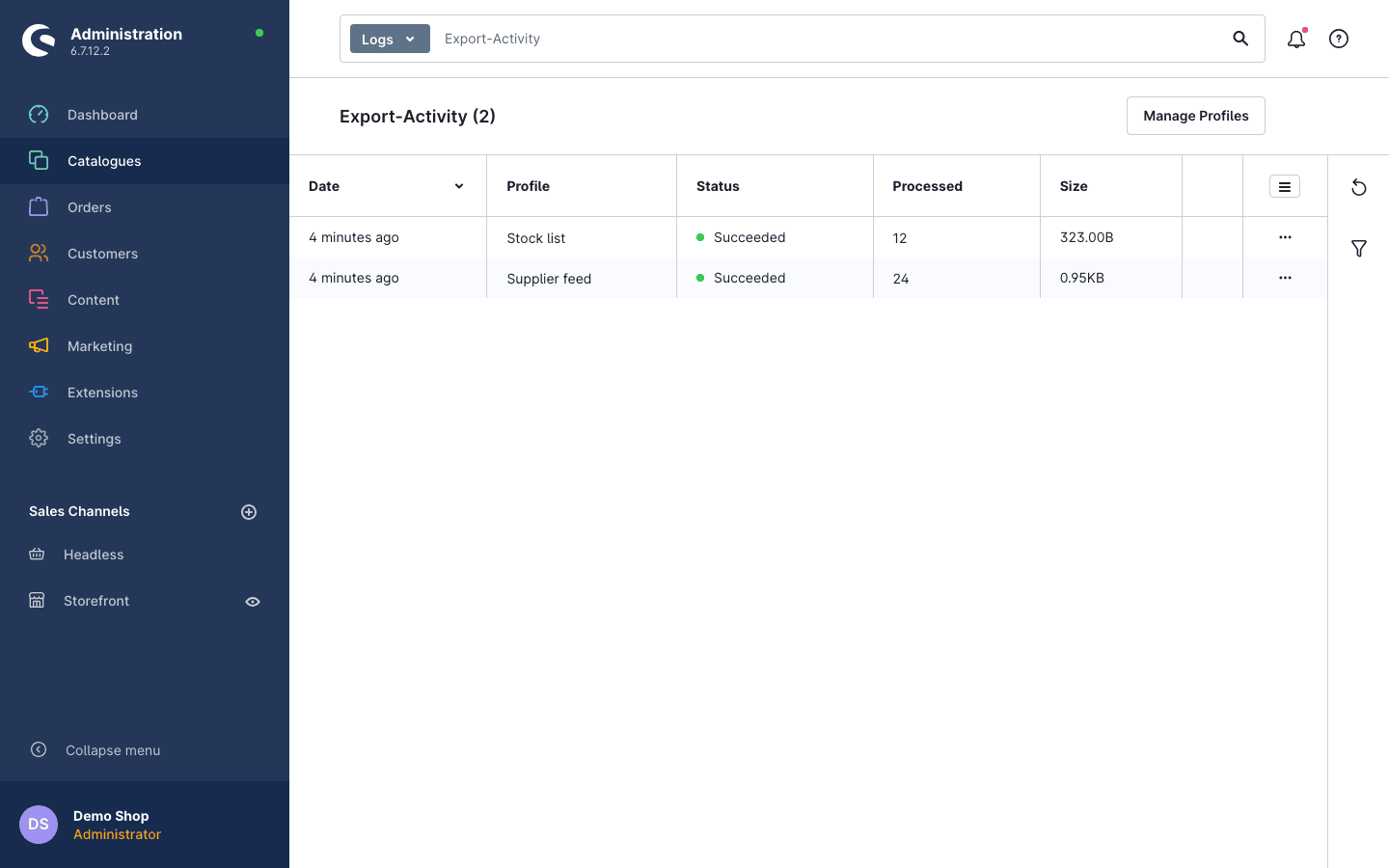
- Export history & status (success / error)
- Re-download of previously generated files
- Progress tracking for running exports
- Located under Catalogues > CSV-Product-Export > Activity
🖥️ Command Line Export (CLI)
Process running activities
Trigger all in-progress exports directly, without waiting for the queue:
An integrated progress bar shows the export progress – suitable even for very large datasets.
Export with a profile
Export using the Shopware standard product profile:
bin/console cnk:csv-products:export --exportType sw_profile --profileName "Default products" --fromDate 2024-01-01 --toDate 2025-02-01
Export using a profile created in this plugin:
bin/console cnk:csv-products:export --exportType config --profileName "PIM feed" --fromDate 2024-01-01 --toDate 2025-02-01
- fromDate: Products created from this date, format
Y-m-d - toDate: Products created up to this date, format
Y-m-d(default: today) - exportType:
sw_profile(Shopware import/export profile) orconfig(this plugin's profile) - profileName: Name of the profile to use (default:
Default products)
Delete expired files
Remove expired export files and their log entries:
Expired files are also cleaned up automatically once a day by the scheduled task cnk_product_export_file.cleanup.
🔐 Permissions (ACL)
Under Settings > Users & permissions > Roles you will find three entries in the Catalogues area:
| Level | Allows |
|---|---|
| CSV product export: export – View / Edit / Create | See the export progress / set up the plugin's flow actions and test the FTPS connection / start exports from the product overview |
| CSV product export: profiles – View / Edit / Create / Delete | View, change, create and delete export profiles |
| CSV product export: activity – View / Delete | View the export history and download files / delete entries |
| CSV product export: scheduled export – View / Edit / Create / Delete | View, change, create and delete the "Scheduled export" add-on's schedules |
| CSV product export: export on data change – View / Edit / Create / Delete | View, change, create and delete the "Export on data change" add-on's triggers |
The roles already include every read permission the screens need (e.g. custom fields in the field selection, users and profiles in the activity, email templates in the flow actions).
📬 Support
For questions, suggestions for improvement or customizations, please contact us by email at support@cnk-plugins.de.