Test Drive Booking System
This plugin adds a test drive booking system to your Shopware 6 shop – no external booking tool and no data transfer to third parties. On the product detail page of a vehicle, customers pick a free slot, enter their details and immediately receive a confirmation email.
Ideal for car dealerships, motorcycle, e-bike, motorhome and boat dealers – wherever customers want to try a vehicle before buying it.
The free core works right away. Optional plans (In-App Purchase) unlock more vehicles, salespeople, calendar invites, reminders, statistics and more.
Highlights
- 🚗 “Book a test drive” button right below the add-to-cart button on the product page
- 🗓️ Booking in 3 steps: appointment → your details → confirm
- 🕒 Only free slots – booked times, minimum notice and blocked days are taken into account automatically
- 📎 Confirmation email, from Starter with .ics calendar invite and reminder
- 👤 Salespeople per vehicle, never double-booked
- 🔒 GDPR compliant – all data stays in your Shopware database
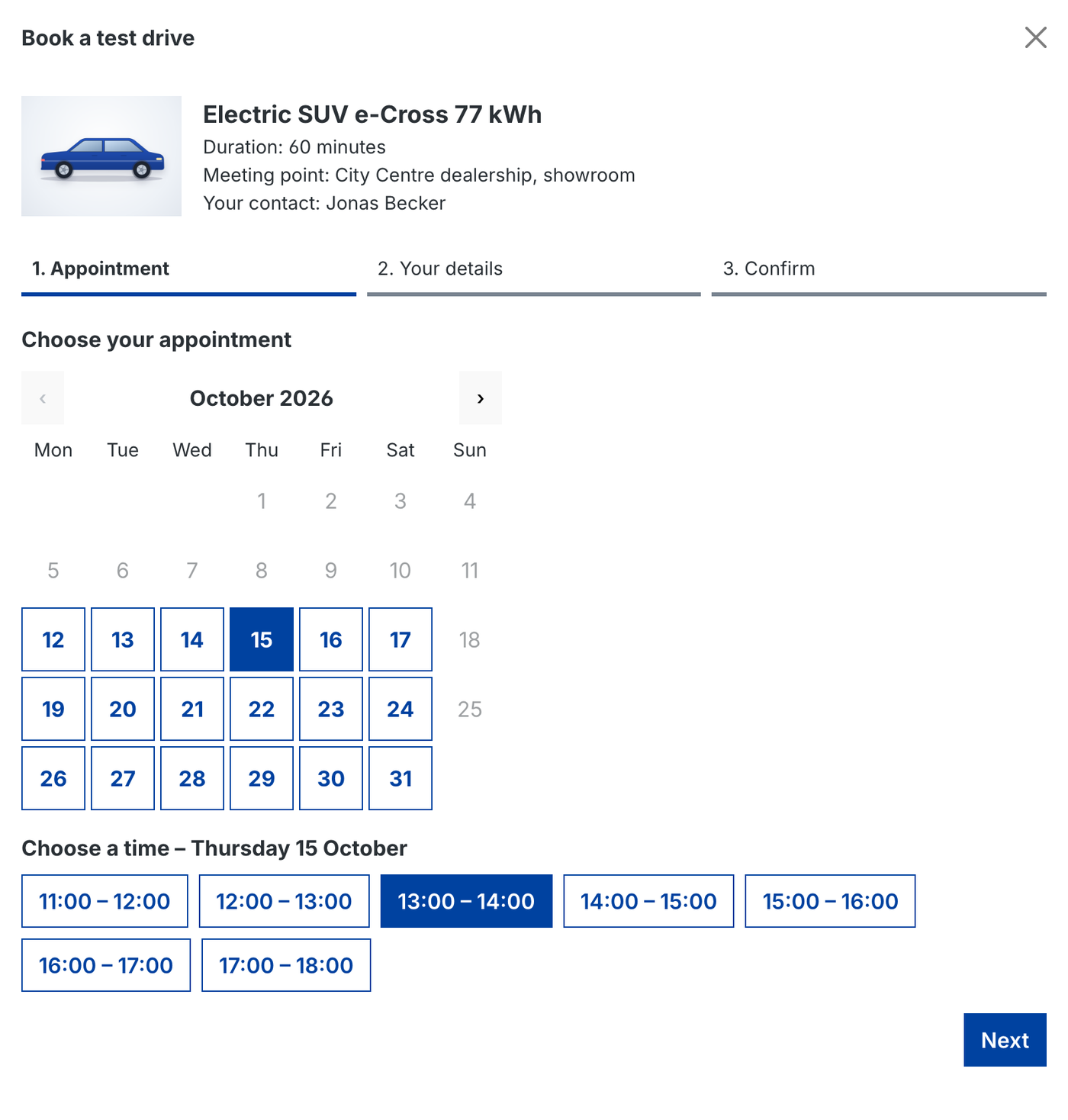
💳 Free core & optional plans
The plugin is free to use. Additional features are available as an optional In-App Purchase right inside Shopware. Business includes all Starter features.
| Feature | Free | Starter | Business |
|---|---|---|---|
| Booking in 3 steps with calendar | ✅ | ✅ | ✅ |
| Booking without customer account, spam protection | ✅ | ✅ | ✅ |
| Confirmation, merchant and cancellation emails | ✅ | ✅ | ✅ |
| Manage appointments in the admin (confirm, complete, cancel) | ✅ | ✅ | ✅ |
| Customers can cancel their appointment online | ✅ | ✅ | ✅ |
| Active vehicles | 1 | 10 | unlimited |
| Bookings per month | 5 | unlimited | unlimited |
| .ics calendar invite in the confirmation | – | ✅ | ✅ |
| Reminder email before the appointment | – | ✅ | ✅ |
| Assign and notify salespeople (no overlaps) | – | ✅ | ✅ |
| Blocked days per vehicle | – | ✅ | ✅ |
| Check of the required driving licence category | – | ✅ | ✅ |
| Automatic blocking of sold vehicles | – | – | ✅ |
| Statistics and conversion to purchase | – | – | ✅ |
| CMS element for Shopping Experiences | – | – | ✅ |
| Vehicle bookable in one sales channel only | – | – | ✅ |
Under Orders > Test drives > Plans you see your current plan and activate Starter or Business with one click. The same overview is shown at the top of the plugin configuration.
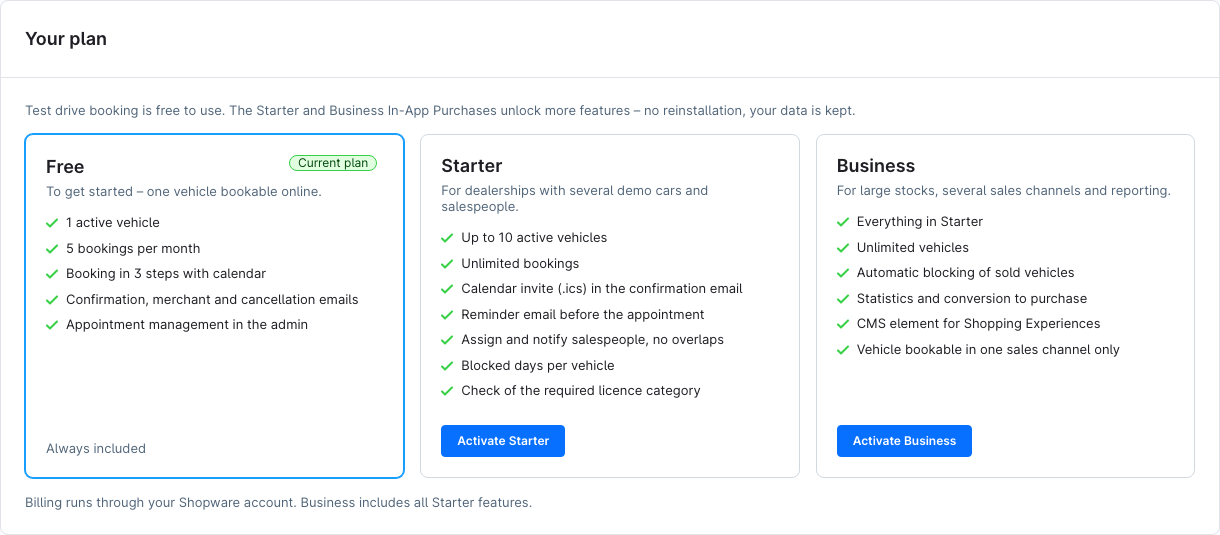
Nothing is hidden
Features of a higher plan stay visible – with a note on what they do and a button to activate them. Shopware shows the current prices in the In-App Purchase dialog. If a plan ends, all data is kept; vehicles above the limit are not deleted, only the oldest ones within the limit remain bookable.
🔧 Installation
- Requirement: Shopware 6.7
- Install from the Shopware Store or upload the ZIP under Extensions > My extensions
- Install and activate the plugin
- The module is located under Orders > Test drives
⚙️ Configuration
Open the configuration under Extensions > My extensions > Test Drive Booking System > Configure. Every setting can be overridden per sales channel.
Booking
| Setting | Description | Default |
|---|---|---|
| Default test drive duration (minutes) | Used for every vehicle without its own duration | 60 |
| Booking horizon (days) | How far in advance customers can book | 60 |
| Minimum notice (hours) | Appointments starting earlier are not offered | 24 |
| Confirm bookings automatically | Off: new bookings stay “Pending” until you confirm them | on |
| Time zone of the dealership | Time zone of the availability times (e.g. Europe/Berlin) | Europe/Berlin |
| Customers may cancel their appointment online | Cancellation via the personal link in the confirmation email | on |
Booking form
| Setting | Description | Default |
|---|---|---|
| Driving licence category is required | Customers must state their licence category | on |
| Phone number is required | Phone number becomes mandatory | off |
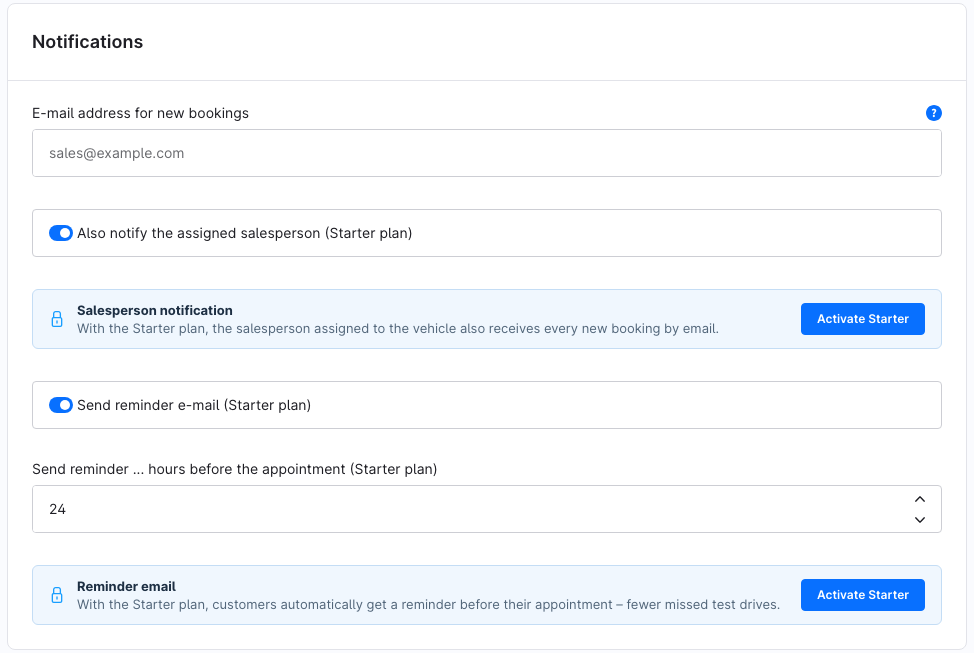
Notifications
| Setting | Description | Default |
|---|---|---|
| E-mail address for new bookings | Recipient of the merchant notification; empty = shop owner email (Basic information) | empty |
| Also notify the assigned salesperson | The vehicle's salesperson receives every new booking (Starter) | on |
| Send reminder e-mail | Automatic reminder to the customer (Starter) | on |
| Send reminder … hours before the appointment | When the reminder is sent (1–168 hours) | 24 |
Next to every setting of a higher plan, the configuration explains what the feature does and shows a button to activate the plan.
🚗 Setting up vehicles
Every bookable vehicle is a Shopware product (variants included). Under Orders > Test drives > Vehicles > Add vehicle:
- Select the product – each product can be added as a vehicle only once.
- Enable Bookable online – controls the button on the product page.
- Enter the duration of a test drive (empty = default duration) and the meeting point.
- Add the weekly availability: weekday, from, to (HH:MM). The time windows are split into appointments of the configured duration; several windows per day are possible.
With Starter you also get:
- Salesperson – receives the bookings by email; a salesperson can never accompany two test drives at the same time.
- Required driving licence category (e.g. A for motorbikes) – bookings with a lower category are rejected.
- Blocked days – periods without appointments (service, trade fair, holidays) with an internal reason.
With Business you also get:
- Only bookable in sales channel – the vehicle is offered in one specific sales channel only.
- Automatic blocking – as soon as the product is deactivated or its available stock reaches 0 (sold), no more appointments are offered; once the product is available again, the vehicle is released automatically. Existing appointments are kept.

👤 Salespeople
Under Orders > Test drives > Salespeople (Starter) you create your salespeople: name, email for notifications, phone, optional photo, active/inactive. Then assign them to your vehicles. The salesperson's name and phone number appear as contact in the booking confirmation.
🛒 Booking flow in the storefront
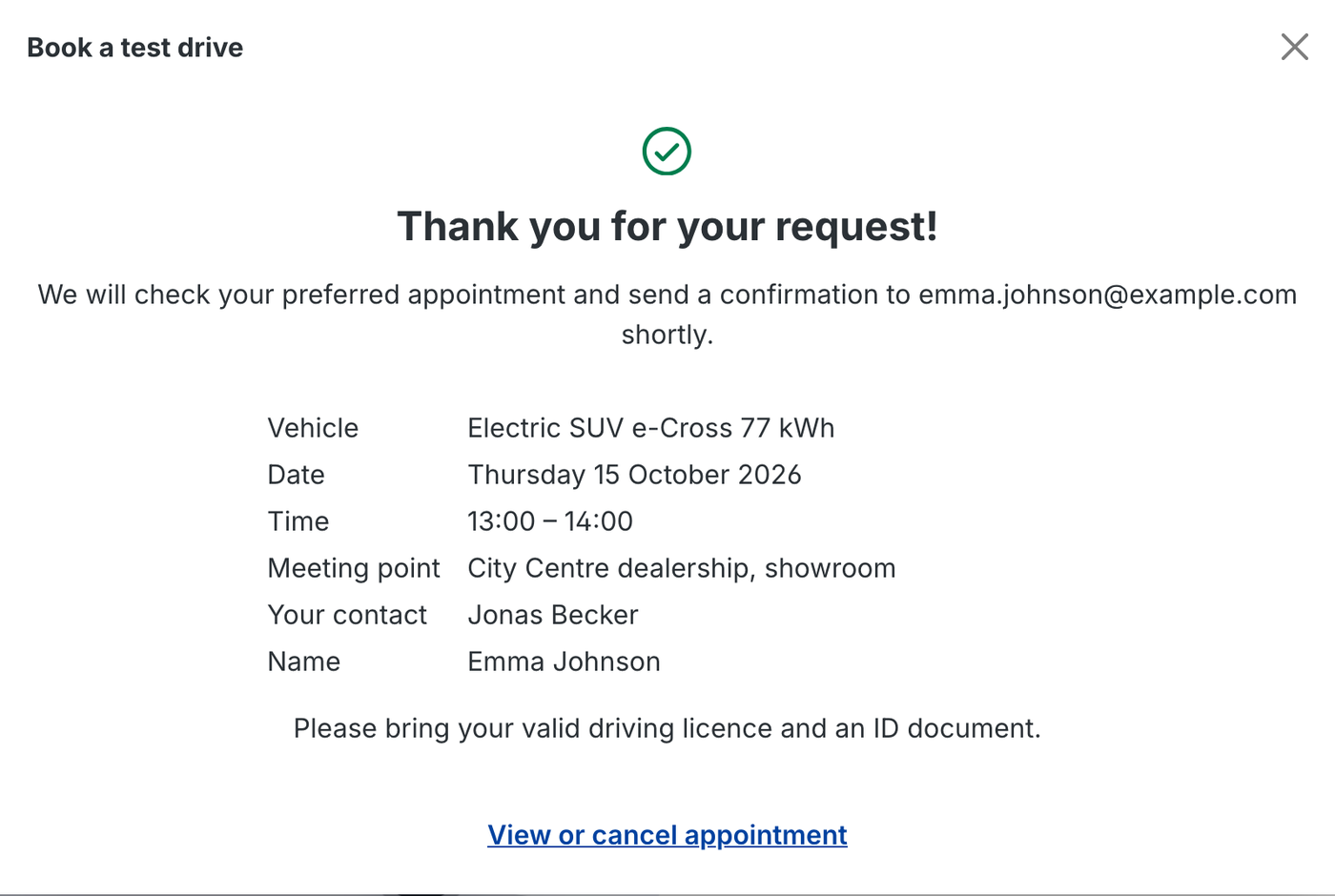
On the product detail page of a bookable vehicle, a “Book a test drive” button appears below the add-to-cart button. It opens a window with three steps:
- Appointment – calendar with the free days, then the free times of the selected day
- Your details – first name, last name, email, phone, licence category, message
- Confirm – summary and consent to the privacy policy

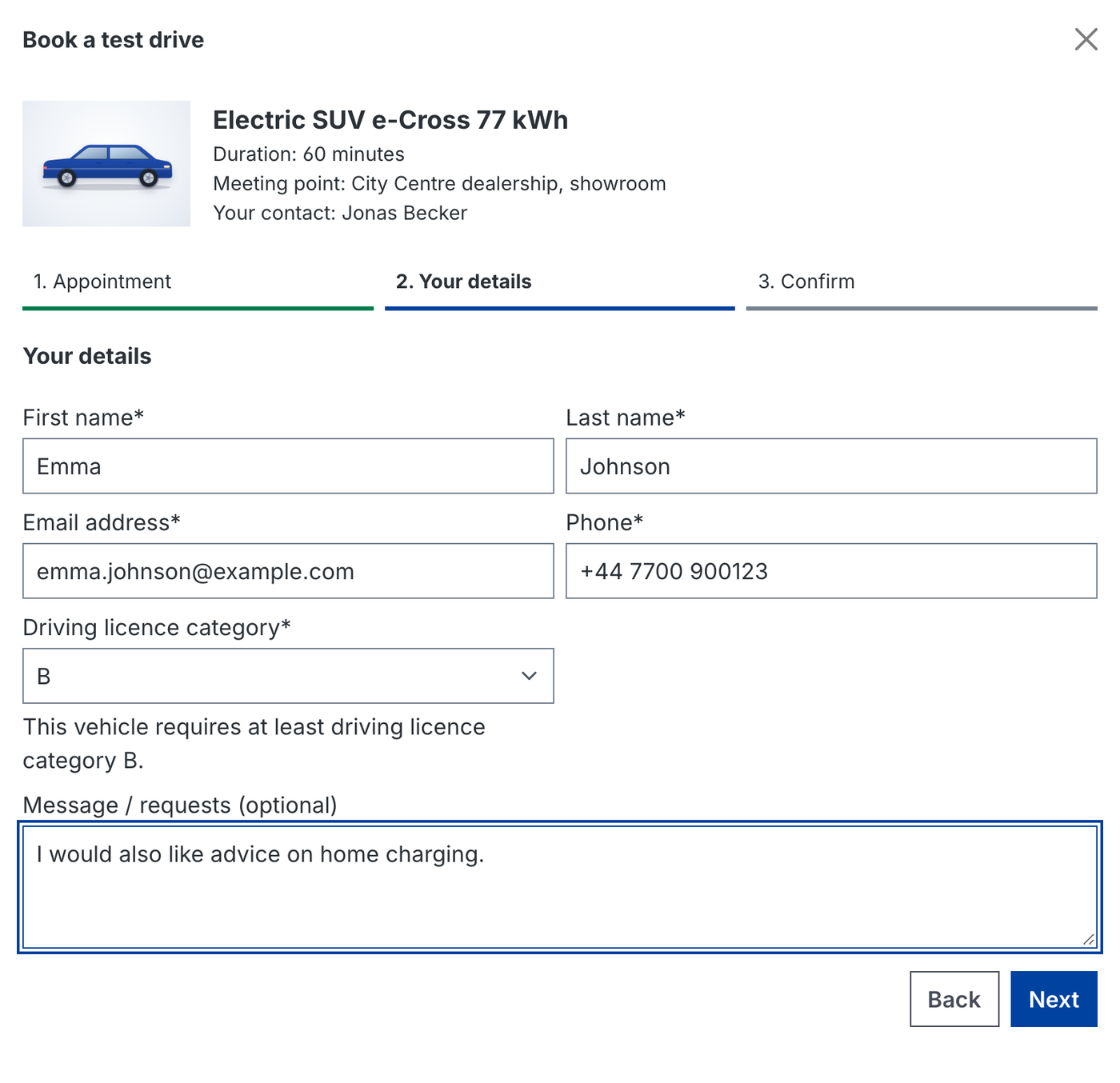
Booking works without a customer account; logged-in customers find their details prefilled. An invisible honeypot field keeps spam bots away. Without JavaScript, the same booking is available as a separate page.
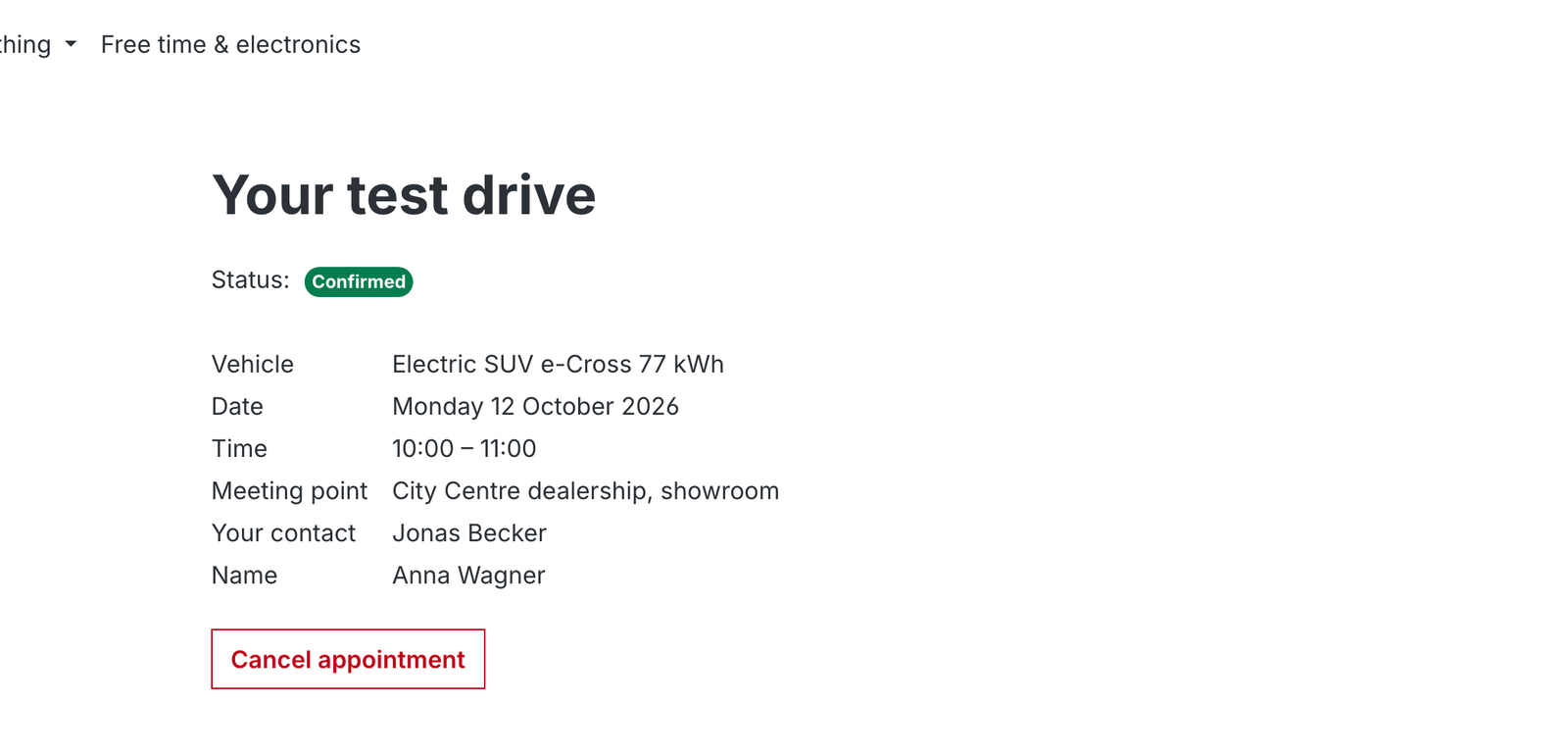
With the personal link in the confirmation email, customers see their appointment and its status and can cancel it (if allowed in the configuration and the appointment has not started yet).
Place it anywhere with Shopping Experiences (Business)
Under Content > Shopping Experiences, the “Test drive booking” block is available in the Commerce category. Select the vehicle in the element and the booking form appears right on the page – for example on a landing page for a new model.
📋 Managing bookings
Under Orders > Test drives > Bookings you see all appointments with key figures (bookings this month, appointments today, waiting for confirmation) and filters for search term, status, vehicle and period.

| Status | Meaning |
|---|---|
| Pending | Requested, waiting for your confirmation (only without automatic confirmation) |
| Confirmed | Appointment is fixed |
| Completed | The test drive took place |
| Cancelled | Cancelled by the merchant or the customer |
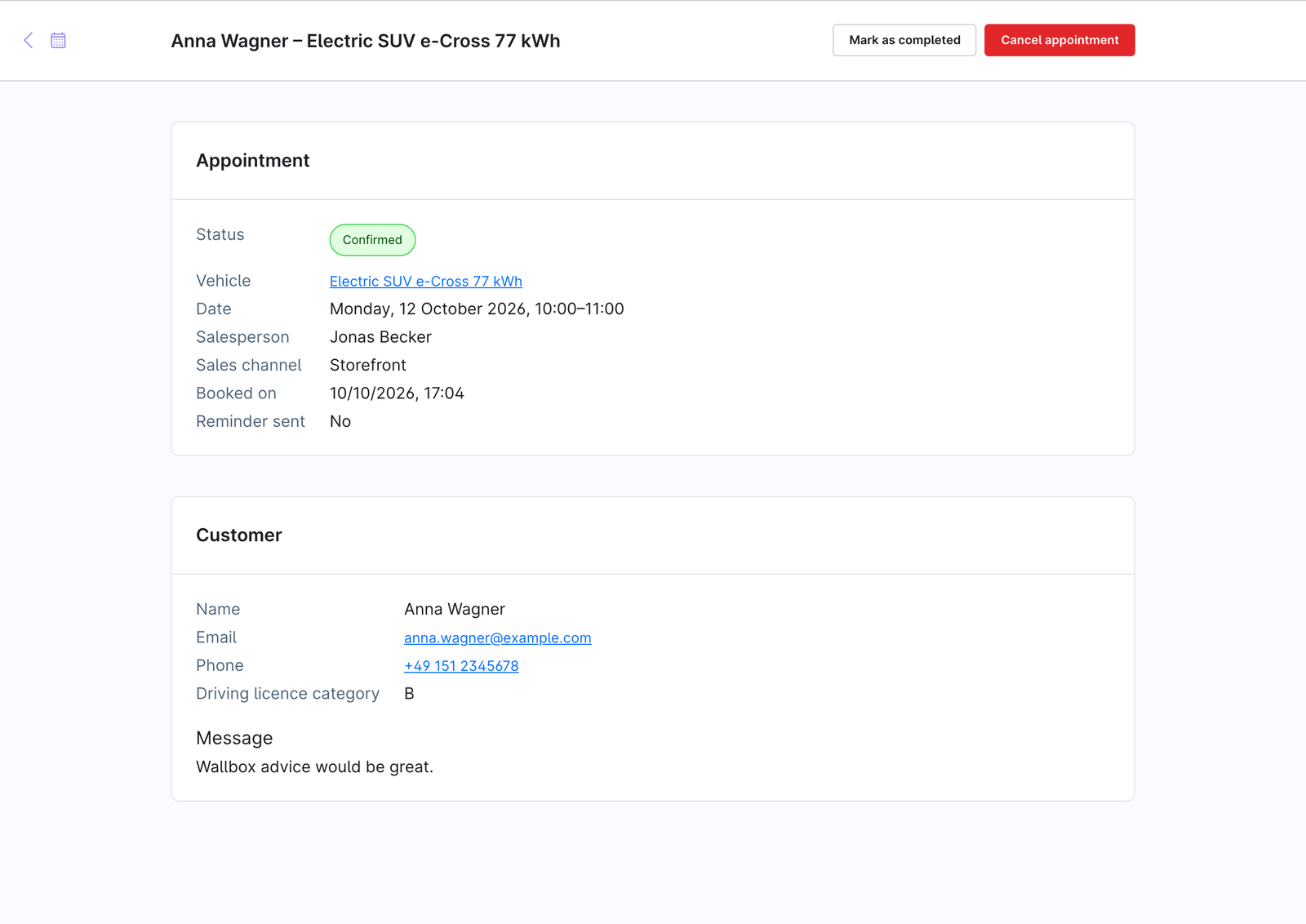
Use the context menu or the detail page to confirm, complete or cancel an appointment. On confirmation and cancellation the customer automatically receives an email.
📊 Statistics (Business)
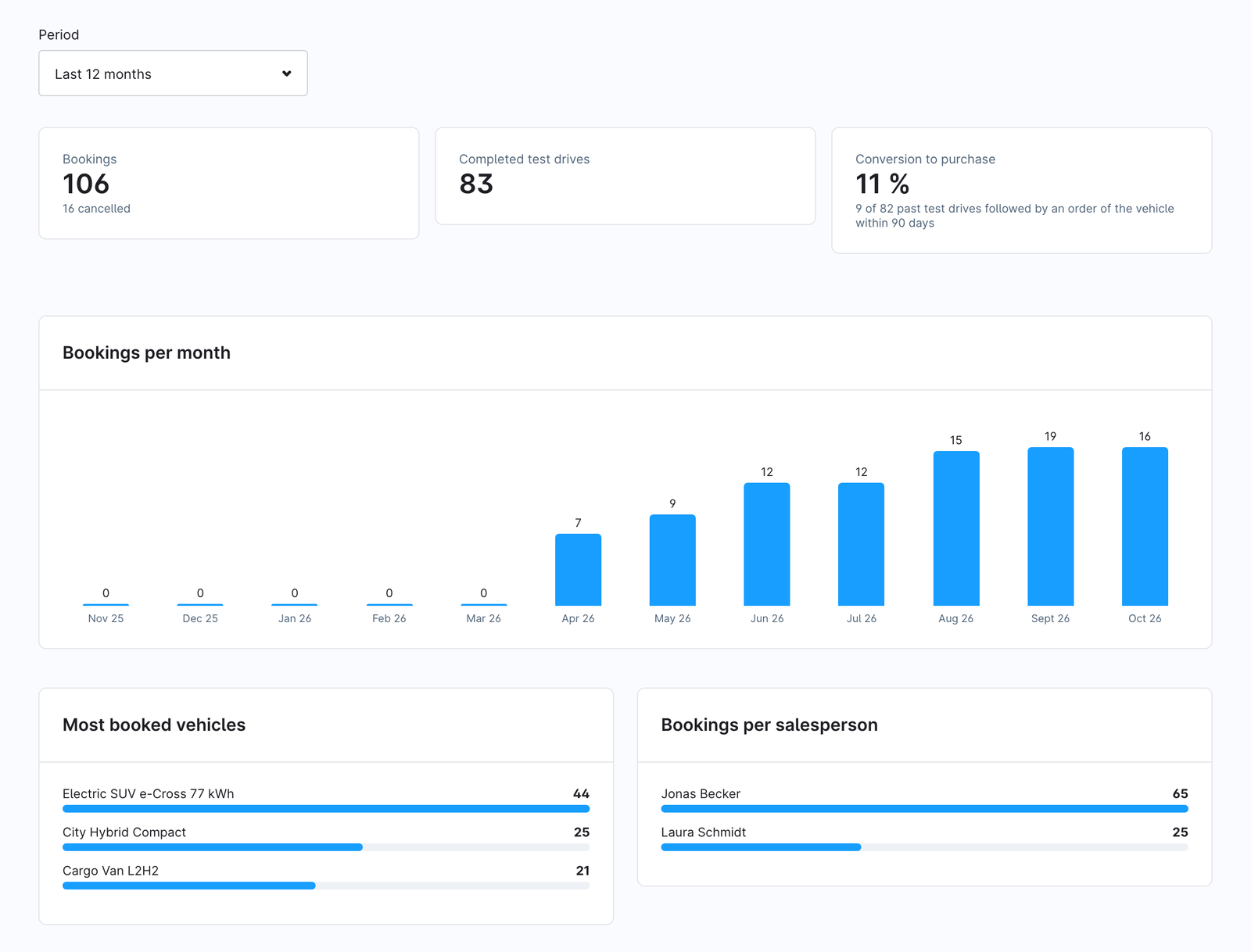
The Statistics tab shows for the selected period (3, 6, 12 or 24 months):
- Total and cancelled bookings, completed test drives
- Conversion to purchase – share of past test drives after which the same email address ordered the vehicle within 90 days
- Bookings per month, most booked vehicles and bookings per salesperson
📬 Email notifications
| Email template | Recipient | When |
|---|---|---|
| Test drive – booking confirmation (customer) | Customer | On booking (as request or confirmation) and on confirmation in the admin; from Starter with .ics |
| Test drive – new booking (merchant) | Merchant address, from Starter also the salesperson | On every new booking |
| Test drive – appointment reminder (customer) | Customer | Starter: the configured hours before the appointment |
| Test drive – cancellation | Customer; if the customer cancels, also merchant and salesperson | On every cancellation |
Customer emails are sent in the language the booking was made in. Edit all texts under Settings > Email templates.
Requirement: scheduled tasks
Reminders (cnk_test_drive.reminder) and automatic blocking (cnk_test_drive.auto_block) run hourly as scheduled tasks. Shopware's background worker (message queue and scheduled tasks) must be running – this is the default on most hostings.
🔐 Permissions (ACL)
Under Settings > Users & permissions > Roles, the Orders section contains the entry “Test drives” with these levels:
| Level | Allows |
|---|---|
| Viewer | View bookings, vehicles, salespeople, statistics and plans |
| Editor | Confirm, complete and cancel appointments; edit vehicles, time windows, blocked days and salespeople |
| Creator | Create vehicles and salespeople |
| Deleter | Delete bookings, vehicles and salespeople |
Buttons without the required permission are disabled in the admin; the Admin API checks the same permissions.
🔒 Data protection (GDPR)
The plugin runs entirely inside your Shopware installation. There is no data transfer to external services. Customers must accept the privacy policy before booking. Uninstalling without “Keep user data” removes all tables, email templates and settings of the plugin.
❓ FAQ
Is the plugin free?
Yes. The free core includes one vehicle and 5 bookings per month. More vehicles, salespeople, reminders and statistics are unlocked with the Starter and Business plans.
Which dealers is the plugin made for?
Car dealerships (new and used cars), motorcycle, scooter, e-bike and e-scooter dealers as well as motorhome, caravan and boat dealers.
Can customers book without an account?
Yes. Booking works without registration; logged-in customers find their details prefilled.
Do customers receive a calendar invite?
From the Starter plan, the confirmation email contains an .ics file for Outlook, Google and Apple Calendar.
What happens when a vehicle is sold?
With Business, the vehicle is blocked automatically as soon as the product is deactivated or no stock is available. Without Business, disable “Bookable online” on the vehicle.
Which Shopware version is required?
Shopware 6.7. No other plugins are required.
📬 Support
For questions, suggestions or custom adaptations, contact us by email at support@cnk-plugins.de.