CSV Export for Orders – Flexible & Automated
The plugin enables flexible export of Shopware 6 orders as a CSV file – either completely or filtered by time period, status, payment method, and more. Using individual profiles, fields can be freely defined and exports tailored to specific requirements.
Highlights
- ✅ Export orders as CSV – flexible, filterable, automatable
- 🔁 Fully automatic export via schedule (Scheduled Task / Cronjob)
- ✉️ Send by email or upload via FTP
- 🧩 Freely configurable export fields with sorting and filters
- 🛠️ CSV format fully configurable (delimiter, date, encoding, etc.)
- 🗂️ Additional export formats: XLSX, JSON, XML in addition to CSV (In-App Purchase)
- 🏢 ERP templates for DATEV, JTL-Wawi, Billbee, Xentral & Lexware (In-App Purchase)
- 🔄 Delta / incremental export – only new or changed orders (In-App Purchase)
❓ FAQ
Can I automate the export?
Yes, the plugin supports automatic export via Shopware Scheduled Tasks (Cronjobs).
The CSV file can be automatically created and sent by email or FTP.
Can I create custom export profiles?
Yes, you can create individual export profiles and determine which fields are exported and in what order.
Are custom fields supported?
Yes, the plugin supports custom fields for orders, customers, products, and order line items.
How many orders can I export at once?
The maximum number of orders is configurable in the plugin settings.
Very large datasets can also be exported via CLI.
Which formats can I export to?
By default CSV. With the "Pro Formats & ERP Templates" In-App Purchase you can also export as Excel (XLSX), JSON or XML – configurable per profile.
Are ERP / inventory-management systems supported?
Yes. With the "Pro Formats & ERP Templates" In-App Purchase, one-click templates are available for DATEV, JTL-Wawi, Billbee, Xentral and Lexware that automatically pre-fill the field selection and format settings.
Can I export only new or changed orders?
Yes, with the "Delta Export" In-App Purchase. Only orders created or changed since the last successful run are exported – ideal for keeping an ERP in sync without duplicates.
Why do my automated exports only run while the Administration is open?
Scheduled exports require an active background worker (Shopware message queue / scheduled tasks) – just like every scheduled task in Shopware. On Shopware Cloud and most managed hostings this is already active. Otherwise, ask your hosting provider to enable the worker – or trigger the task via cron with the standard Shopware command bin/console scheduled-task:run-single cnk_order_csv_export.task instead. Manual exports work without a worker.
🔧 Installation
- Prerequisites (CNK Foundation)
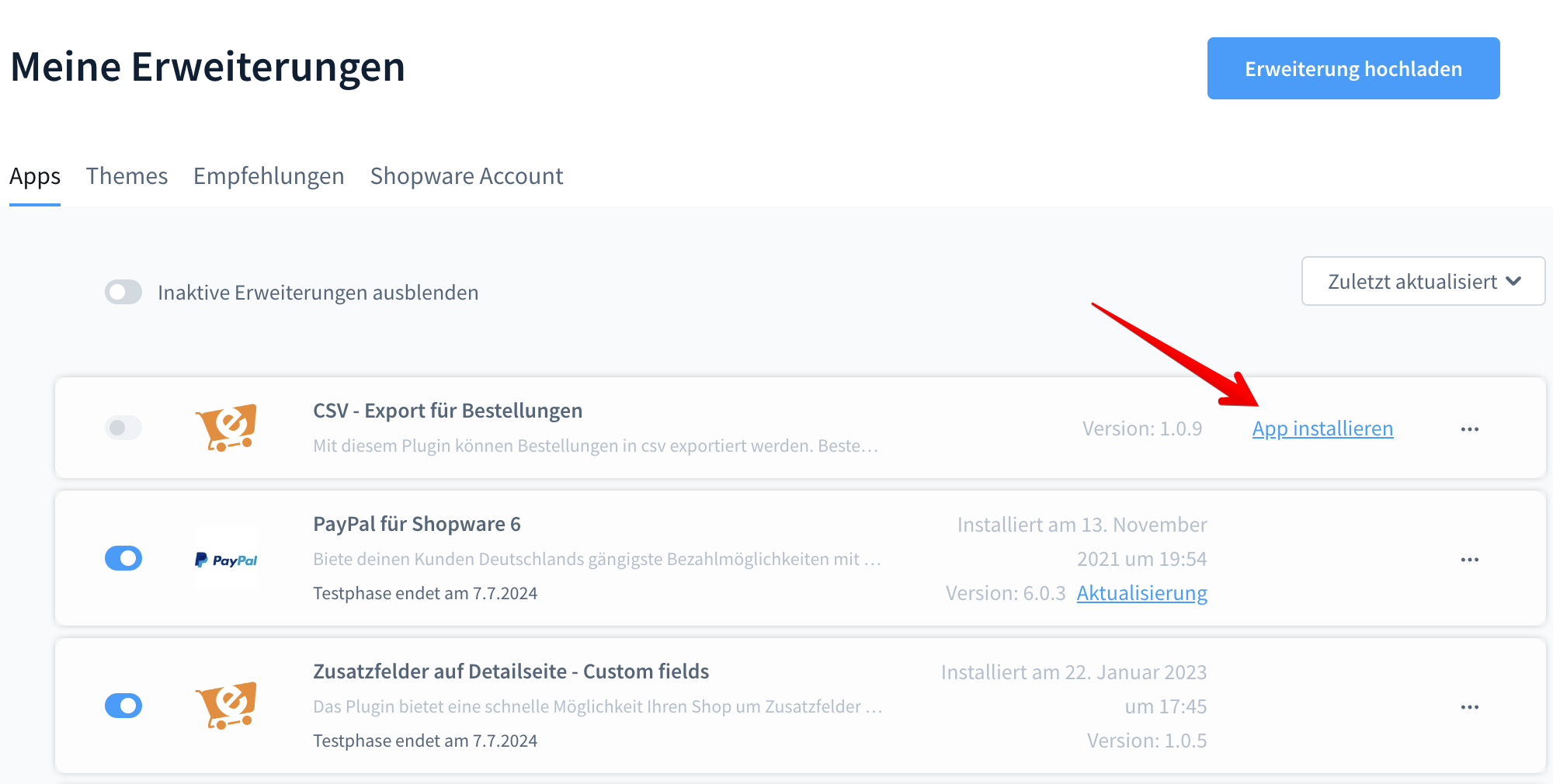
- Installation via Store or ZIP
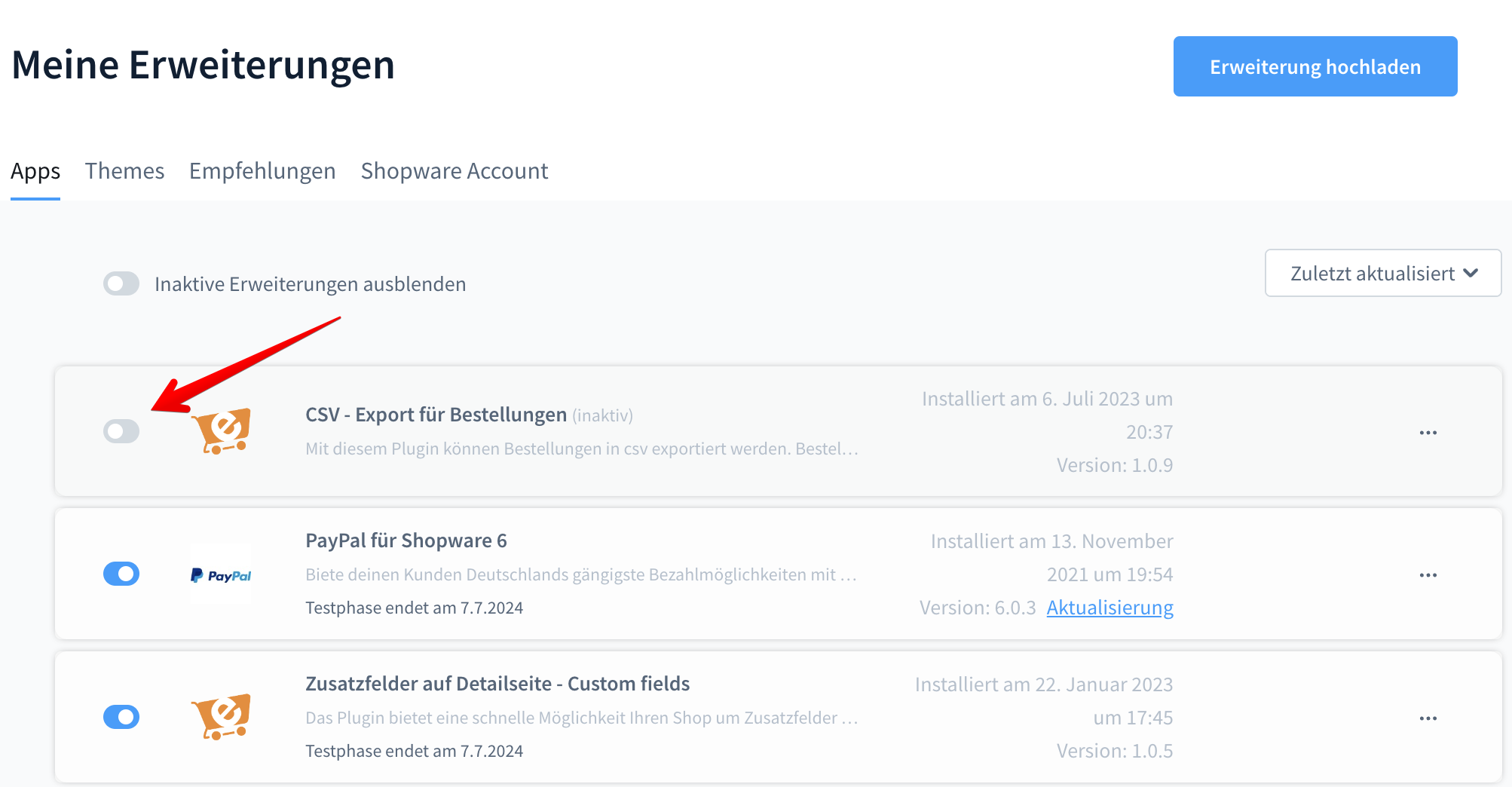
- Activation & visibility in the backend
🧩 Manage Profiles
Export profiles define which data is included in the CSV file and in what order it appears.
Profiles are located in the Shopware admin area under Orders > CSV Export > Profiles.
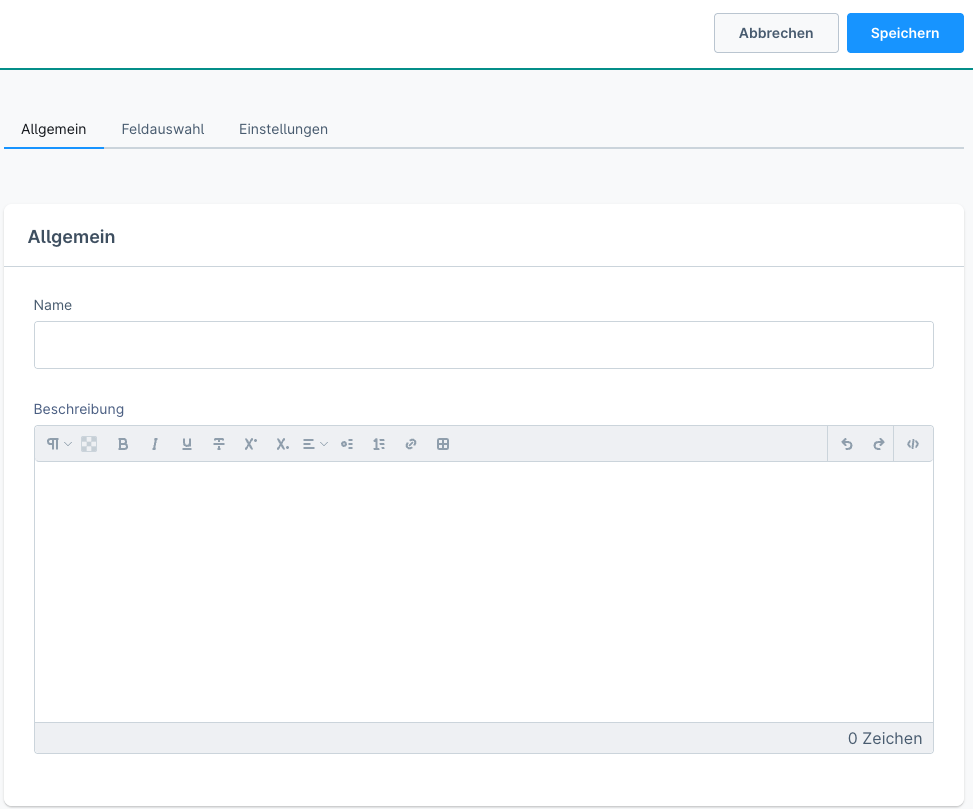
Within a profile, you can specifically define which fields should be included in the exported CSV file.
Using the "Add field" button, order, customer, product, and address fields can be individually selected and arranged.
The order of fields in the profile corresponds to the column order in the CSV file.

🗂️ Export Formats & ERP Templates
In-App Purchase: Pro Formats & ERP Templates
These features can be unlocked via an In-App Purchase directly in the Shopware admin area.
In addition to the default CSV format, you can output your export profiles as Excel (XLSX), JSON or XML.
The export format is set per profile in the Configuration tab via the "File format" field and is enforced server-side across all export paths (manual, quick export, schedule, Flow Builder and CLI). If the In-App Purchase is not active, the export automatically falls back to CSV.
Unlock a Pro format
- Open a profile under Orders > CSV Export > Profiles and switch to the Configuration tab.
- Under File format, select a Pro format (XLSX, JSON or XML). If the purchase is not yet active, a hint with an "Unlock" button appears.
- After purchase, the format is immediately available and applied on save.
Apply ERP templates
ERP templates pre-fill, with one click, the matching field selection as well as the delimiter, number, date and encoding settings for the target system:
| Template | Target system |
|---|---|
| DATEV | DATEV / accounting |
| JTL-Wawi | JTL inventory management |
| Billbee | Billbee |
| Xentral | Xentral ERP |
| Lexware | Lexware |
To apply a template:
- Make sure the "Pro Formats & ERP Templates" In-App Purchase is active.
- In the profile, select the desired system under ERP template and click "Apply template".
- The field selection and format settings are applied. Your chosen file format is preserved – so you can, for example, output a DATEV field selection as XLSX.
💡 Applying a template overwrites the profile's current field selection. Adjust the fields afterwards if needed and save the profile.
🔄 Incremental / Delta Export
In-App Purchase: Delta Export
This feature can be unlocked via a separate In-App Purchase directly in the Shopware admin area.
With delta export, each run exports only the orders created or changed since the last successful export. This keeps an ERP or accounting system in sync without duplicates and saves time and data – especially with large order volumes.
- Enabled per profile via the "Delta / incremental export" switch in the Configuration tab.
- Matches orders by created or updated date (
createdAt/updatedAt), so subsequently changed orders are re-exported. - The delta watermark is advanced only after a successful export – if a run fails, no orders are lost.
- Works across all export paths: schedule, Flow Builder and CLI (config profile).
Set up delta export
- Open a profile and switch to the Configuration tab.
- Enable the "Delta / incremental export" switch. If the purchase is not yet active, a hint with an "Unlock" button appears.
- Save the profile. From the next run on, only new or changed orders are exported.
Reset the delta watermark
If you want to export all orders again (e.g. for a full initial sync), reset the watermark:
- Open the profile in the Configuration tab.
- Click "Reset" in the delta hint and save the profile.
- The next run exports all matching orders again and then sets a new watermark.
💡 Delta export uses the export start time as the watermark. In edge cases it therefore re-exports a few orders rather than skipping them – ideal for idempotent imports (upserts) into an ERP.
Variables
💡 Field names must be used exactly as shown in the left column.
The following overview shows all available variables that can be used in an export profile.
These determine which data appears in the CSV file – for example, general order data, customer information, address fields, or product details.
Field names in the left column are configured in the profile; the right column describes the content.
🧾 General Order Data
| Field name | Description |
|---|---|
id | Order ID |
order_number | Order number |
order_date | Order date |
order_date_time | Order date and time |
sales_channel | Sales channel |
payment_method | Payment method |
shipping_method | Shipping method |
amount_total | Total amount |
amount_net | Net amount |
position_price | Gross price of the item |
currency_name | Currency |
currency_short_name | Currency (short) |
shipping_total | Shipping costs |
affiliate_code | Affiliate code |
customer_comment | Customer comment |
internal_comment | Internal comment |
transactions_state_machine_state | Payment status |
deliveries_state_machine_state | Delivery status |
order_state | Order status |
tags | Tags |
currency_factor | Currency factor |
tax_status | Tax status |
tax_calculation_type | Tax calculation type |
deep_link_code | Deep link code |
auto_increment | Sequential number |
campaign_code | Campaign code |
source | Source |
created_at | Created at |
updated_at | Updated at |
order_language | Order language |
sales_channel_id | Sales channel ID |
currency_id | Currency ID |
language_id | Language ID |
state_id | Status ID |
billing_address_id | Billing address ID |
📦 Order Line Items
| Field name | Description |
|---|---|
line_items_id | Line item ID |
line_items_order_number | Order number (line item) |
line_items_label | Name |
line_items_description | Description |
line_items_quantity | Quantity |
line_items_unit_price | Unit price |
line_items_total_price | Total price |
👤 Customer Data
| Field name | Description |
|---|---|
company | Company |
salutation | Salutation |
first_name | First name |
last_name | Last name |
email | Email address |
birthday | Date of birth |
order_count | Number of orders |
customer_number | Customer number |
customer_id | Customer ID |
customer_group | Customer group |
customer_language | Customer language |
customer_register_date | Registration date |
customer_remote_address | IP address |
vat_ids | VAT IDs |
customer_first_login | First login |
customer_last_login | Last login |
customer_last_order_date | Last order date |
customer_order_total_amount | Total order amount |
customer_review_count | Number of reviews |
customer_tags | Customer tags |
customer_account_type | Account type |
customer_last_payment_method | Last payment method |
order_customer_number | Order customer number |
customer_company | Company (customer) |
customer_title | Title |
customer_active | Active |
customer_guest | Guest account |
🚚 Shipping Address
| Field name | Description |
|---|---|
shipping_address_company | Company |
shipping_address_department | Department |
shipping_address_salutation | Salutation |
shipping_address_title | Title |
shipping_address_first_name | First name |
shipping_address_last_name | Last name |
shipping_address_street | Street |
shipping_address_street_name | Street name |
shipping_address_street_number | Street number |
shipping_address_zipcode | ZIP code |
shipping_address_city | City |
shipping_address_phone_number | Phone number |
shipping_address_additional_address_line1 | Additional address line 1 |
shipping_address_additional_address_line2 | Additional address line 2 |
shipping_address_country_name | Country |
shipping_address_country_iso | Country (ISO) |
shipping_address_country_iso3 | Country (ISO3) |
🧾 Billing Address
| Field name | Description |
|---|---|
billing_address_company | Company |
billing_address_department | Department |
billing_address_salutation | Salutation |
billing_address_title | Title |
billing_address_first_name | First name |
billing_address_last_name | Last name |
billing_address_street | Street |
billing_address_street_name | Street name |
billing_address_street_number | Street number |
billing_address_zipcode | ZIP code |
billing_address_city | City |
billing_address_additional_address_line1 | Additional address line 1 |
billing_address_additional_address_line2 | Additional address line 2 |
billing_address_country_name | Country |
billing_address_country_iso | Country (ISO) |
billing_address_country_iso3 | Country (ISO3) |
🛒 Product Data
| Field name | Description |
|---|---|
line_items_product_id | Product ID |
line_items_product_number | Product number |
line_items_product_name | Product name |
line_items_product_description | Description |
line_items_product_manufacturer_number | Manufacturer number |
line_items_product_ean | EAN |
line_items_product_stock | Stock |
line_items_product_available_stock | Available stock |
line_items_product_max_purchase | Max. quantity |
line_items_product_min_purchase | Min. quantity |
line_items_product_purchase_prices | Purchase price |
line_items_product_shipping_free | Free shipping |
line_items_product_weight | Weight |
line_items_product_width | Width |
line_items_product_height | Height |
line_items_product_length | Length |
line_items_product_category_ids | Category IDs |
line_items_product_category_names | Category names |
line_items_product_release_date | Release date |
line_items_product_manufacturer_name | Manufacturer name |
line_items_product_tags_names | Product tags |
line_items_product_tax_name | Tax name |
line_items_product_tax_rate | Tax rate (%) |
line_items_product_properties | Properties |
🧬 Line Item Details (Payload)
Snapshot data stored on the order line item at the time of purchase.
| Field name | Description |
|---|---|
line_items_payload_mark_as_topseller | Marked as topseller |
line_items_payload_product_type | Product type |
line_items_payload_product_number | Product number (payload) |
line_items_payload_manufacturer_name | Manufacturer name |
line_items_payload_category_names | Category names |
line_items_payload_is_new | Marked as new |
📄 Documents
Fields from generated documents (invoice, delivery note and – if the Pickware plugin is installed – Pickware pick list / POS receipt). Values are only filled once the corresponding document has been created for the order.
Invoice
| Field name | Description |
|---|---|
documents_invoice_date | Date |
documents_invoice_datetime | Date & time |
documents_invoice_document_number | Document number |
documents_invoice_company_name | Company name |
documents_invoice_company_street | Company street |
documents_invoice_company_zipcode | Company ZIP |
documents_invoice_company_city | Company city |
documents_invoice_company_country | Company country |
documents_invoice_company_email | Company email |
documents_invoice_company_phone | Company phone |
documents_invoice_company_url | Company URL |
documents_invoice_payment_due_date | Payment due date |
documents_invoice_tax_number | Tax number |
documents_invoice_vat_id | VAT ID |
documents_invoice_bank_name | Bank name |
documents_invoice_bank_iban | IBAN |
documents_invoice_bank_bic | BIC |
documents_invoice_place_of_jurisdiction | Place of jurisdiction |
documents_invoice_place_of_fulfillment | Place of fulfillment |
documents_invoice_executive_director | Executive director |
documents_invoice_company_address | Company address |
documents_invoice_document_comment | Document comment |
Delivery note
| Field name | Description |
|---|---|
documents_delivery_note_date | Date |
documents_delivery_note_datetime | Date & time |
documents_delivery_note_document_number | Document number |
documents_delivery_note_company_name | Company name |
documents_delivery_note_company_street | Company street |
documents_delivery_note_company_zipcode | Company ZIP |
documents_delivery_note_company_city | Company city |
documents_delivery_note_company_country | Company country |
documents_delivery_note_company_email | Company email |
documents_delivery_note_company_phone | Company phone |
documents_delivery_note_company_url | Company URL |
documents_delivery_note_payment_due_date | Payment due date |
documents_delivery_note_tax_number | Tax number |
documents_delivery_note_vat_id | VAT ID |
documents_delivery_note_bank_name | Bank name |
documents_delivery_note_bank_iban | IBAN |
documents_delivery_note_bank_bic | BIC |
documents_delivery_note_place_of_jurisdiction | Place of jurisdiction |
documents_delivery_note_place_of_fulfillment | Place of fulfillment |
documents_delivery_note_executive_director | Executive director |
documents_delivery_note_company_address | Company address |
documents_delivery_note_document_comment | Document comment |
Pickware ERP pick list
| Field name | Description |
|---|---|
documents_pickware_erp_picklist_document_date | Document date |
documents_pickware_erp_picklist_document_datetime | Document date & time |
documents_pickware_erp_picklist_document_number | Document number |
documents_pickware_erp_picklist_company_name | Company name |
documents_pickware_erp_picklist_company_street | Company street |
documents_pickware_erp_picklist_company_zipcode | Company ZIP |
documents_pickware_erp_picklist_company_city | Company city |
documents_pickware_erp_picklist_company_country | Company country |
documents_pickware_erp_picklist_company_email | Company email |
documents_pickware_erp_picklist_company_phone | Company phone |
documents_pickware_erp_picklist_company_url | Company URL |
documents_pickware_erp_picklist_payment_due_date | Payment due date |
documents_pickware_erp_picklist_tax_number | Tax number |
documents_pickware_erp_picklist_vat_id | VAT ID |
documents_pickware_erp_picklist_bank_name | Bank name |
documents_pickware_erp_picklist_bank_iban | IBAN |
documents_pickware_erp_picklist_bank_bic | BIC |
documents_pickware_erp_picklist_place_of_jurisdiction | Place of jurisdiction |
documents_pickware_erp_picklist_place_of_fulfillment | Place of fulfillment |
documents_pickware_erp_picklist_executive_director | Executive director |
documents_pickware_erp_picklist_company_address | Company address |
documents_pickware_erp_picklist_document_comment | Document comment |
Pickware POS receipt
| Field name | Description |
|---|---|
documents_pickware_pos_receipt_document_number | Document number |
documents_pickware_pos_receipt_document_date | Document date |
documents_pickware_pos_receipt_invoice_number | Invoice number |
Custom fields
In addition to the fields listed above, the field picker automatically shows the custom fields defined in your shop for orders, customers, products and order line items.
⚡ Quick Export via Order Overview
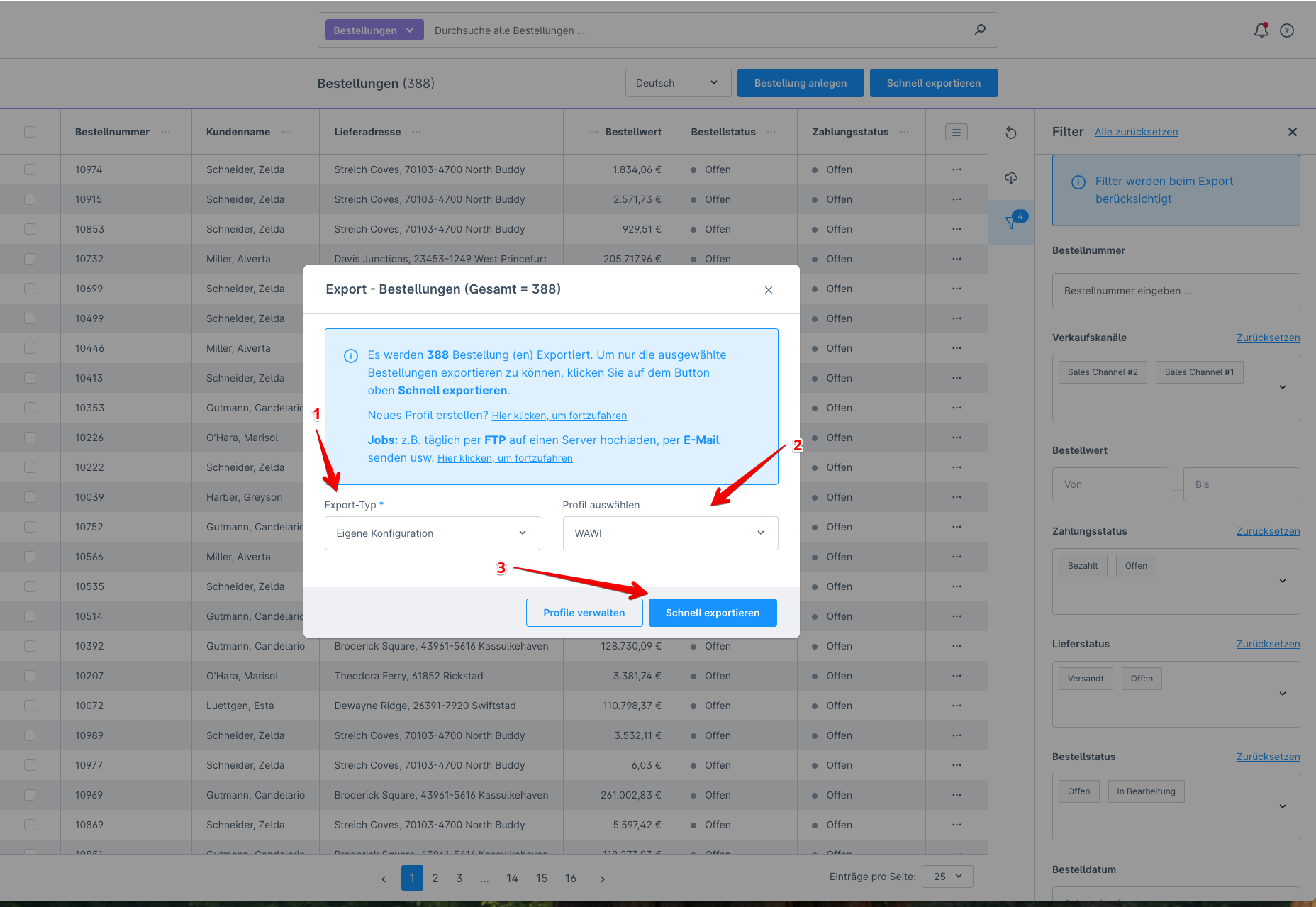
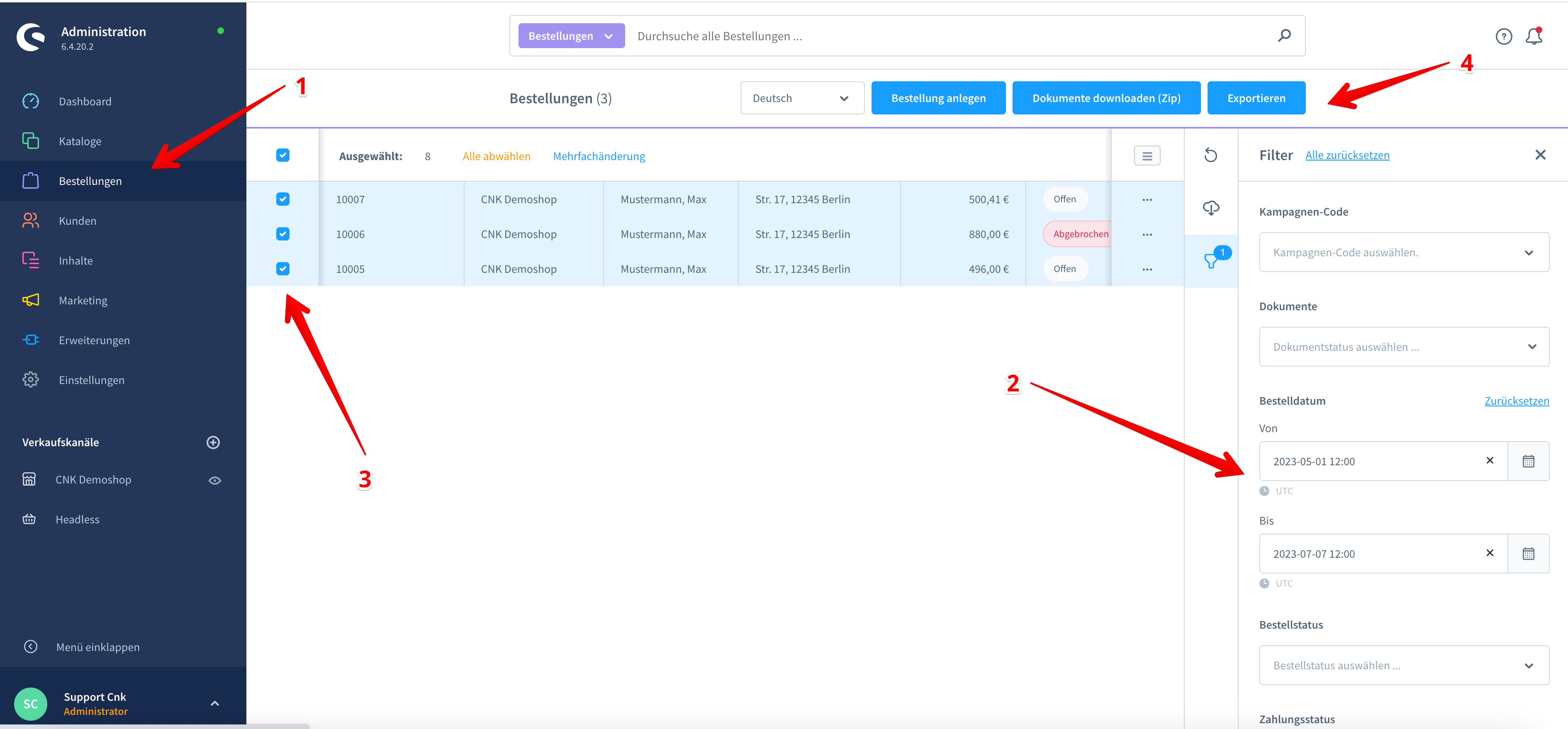
- Direct export of selected orders
- Direct export of filtered orders
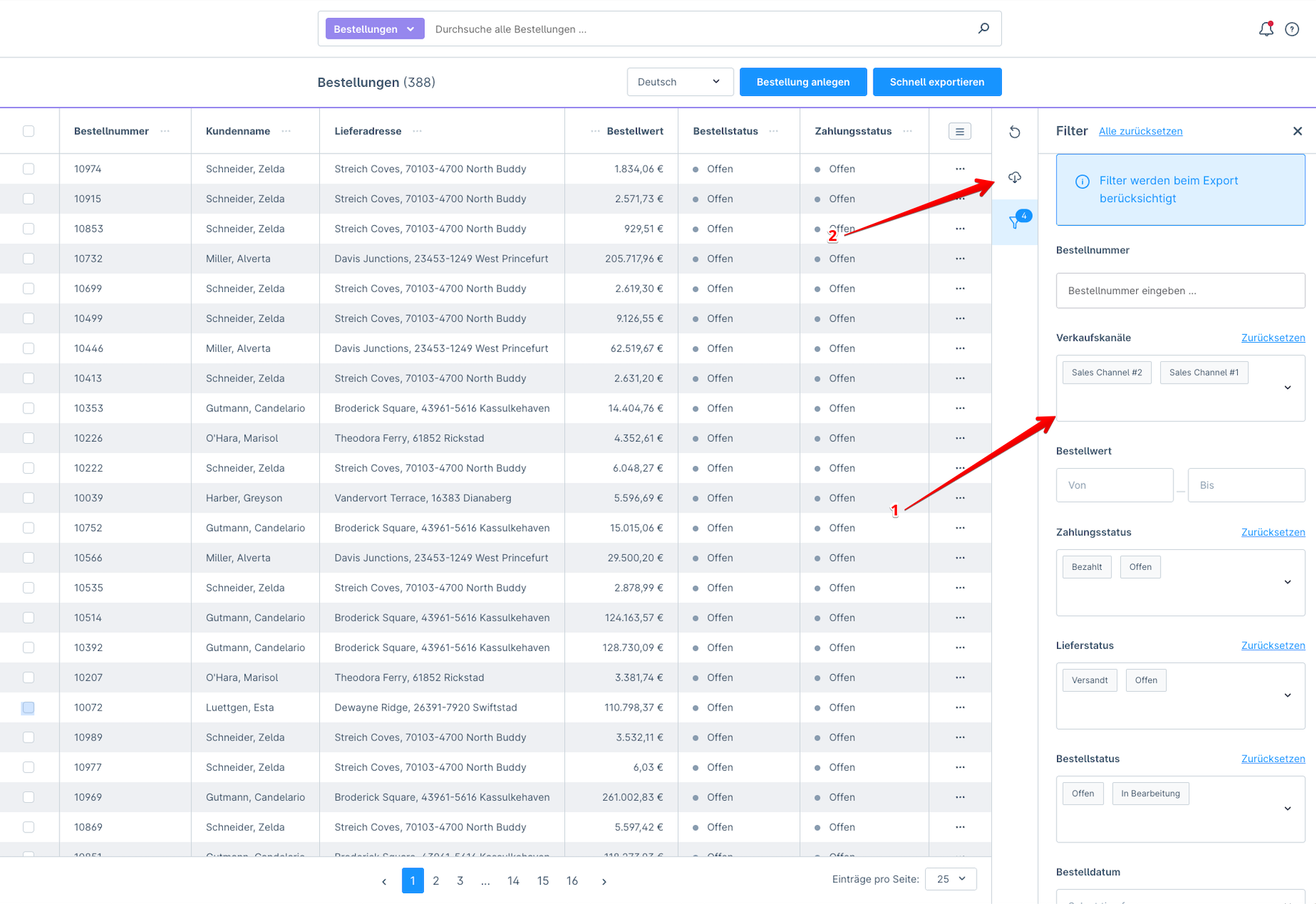
- Select a profile from the dropdown
🔁 Jobs (Automation)
- Description: Scheduled Task / Cronjob
- Configurable options:
- Time interval or fixed weekdays + time
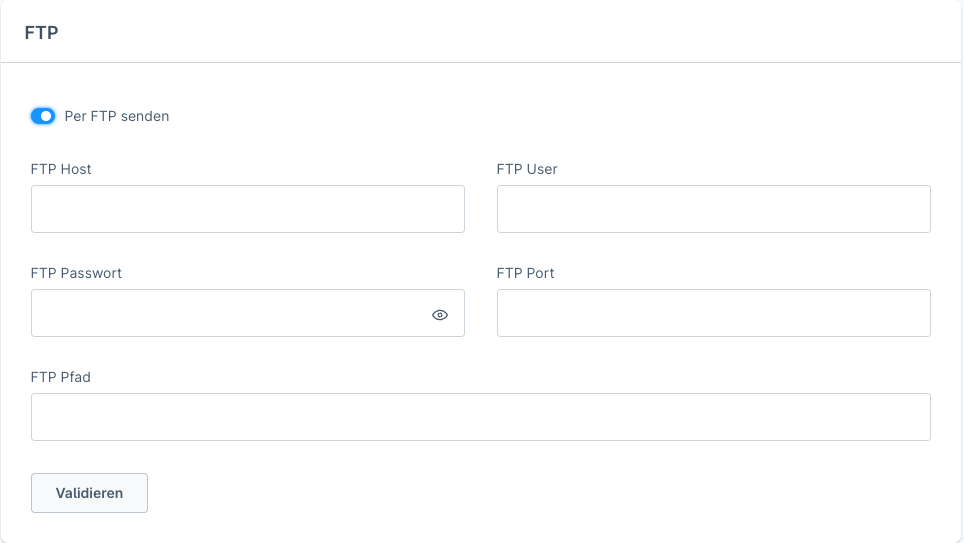
- FTP / email destination
- Profile selection (incl. the format, ERP template and delta export of the chosen profile)
Requirement: an active background worker
Scheduled exports run via your shop's background worker (Shopware message queue & scheduled tasks). On Shopware Cloud and most managed hostings this is active by default – nothing else to set up.
If exports only run while the Administration is open, no background worker is running in your shop. In that case, ask your hosting provider to enable the worker (technically: disable the "admin worker" and run bin/console messenger:consume and bin/console scheduled-task:run as a service or cron – see Shopware Message Queue). Manual exports work without a worker.
No permanent worker? Run it via a direct cron
If your hosting cannot run a permanent worker, trigger the scheduled task directly (synchronously, no message queue) via cron using the standard Shopware command:
The export then runs inside the cron invocation (CSV generation + delivery via email/FTP); the status is visible in the export log.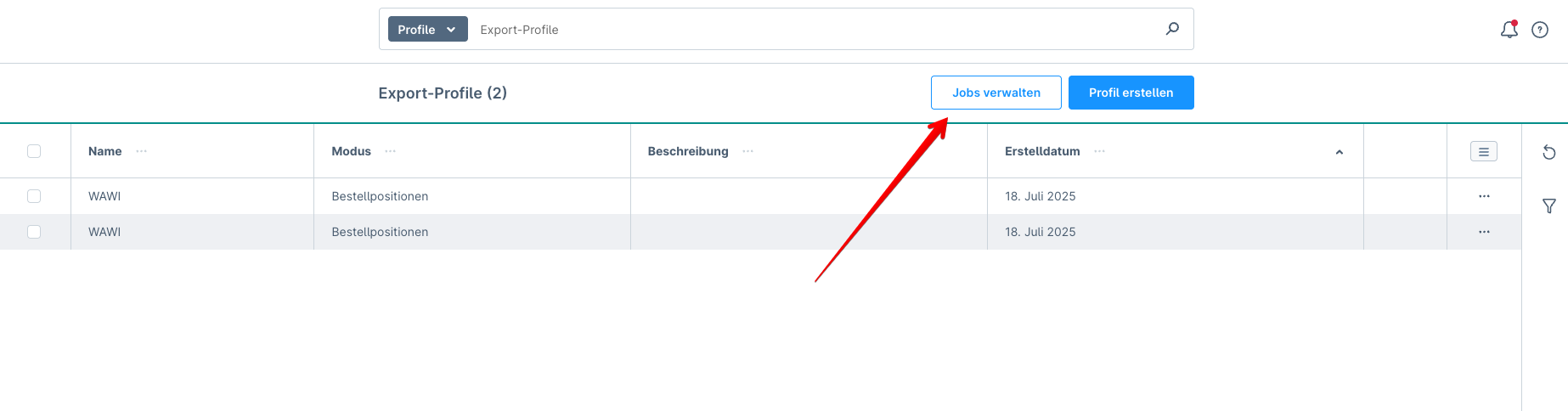

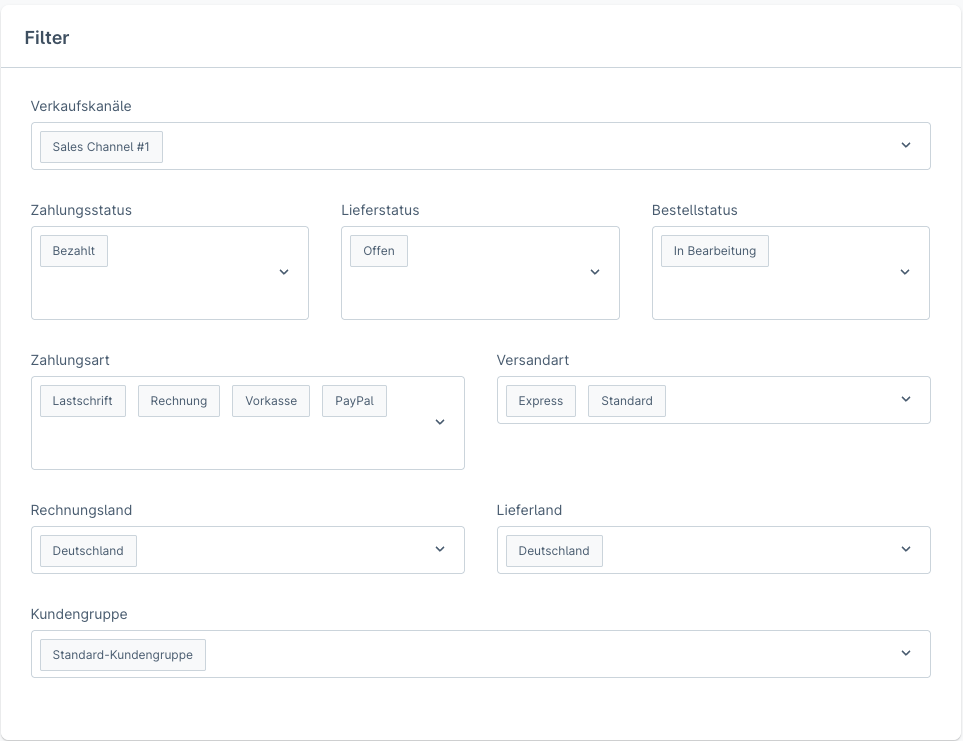

📊 Activity & Logging
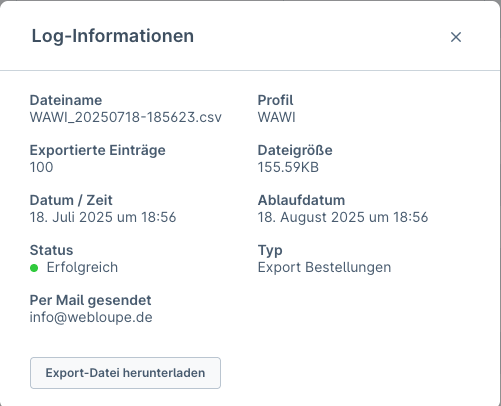
- Export history & status (Success/Error)
- CSV log: recipient, FTP path, timestamp
-
Logs are found under Orders > CSV Export > Activity

-
The result looks like this
🖥️ Command Line Export (CLI)
Quick export of running activities
Exporting large datasets – even more than 10,000 orders – is possible.
An integrated progress bar shows the export progress.
To avoid waiting for the queue, you can trigger the export manually – e.g. for an immediate CSV download after creating an export:
#[AsCommand(
    name: 'cnk:csv-order-log:consume',
    description: 'Export all the activities in progress',
)]
The export can then be started directly from the console:
This command starts all running exports directly via the console.
Export with Shopware profile
bin/console cnk:csv-orders:export --fromDate 2023-05-15 --toDate 2025-02-01 --exportType sw_profile --mode order --profileName "Default orders" --limit 500
Export with custom profile
bin/console cnk:csv-orders:export --fromDate 2023-05-15 --toDate 2025-02-01 --exportType config --mode line_items --profileName "WAWI" --limit 500
- fromDate: Orders from, format Y-m-d
- toDate: Orders to, format Y-m-d
- exportType: Choose between sw_profile and config
- mode: Choose between order and line_items
- profileName: Default profile or user-created profile
- limit: Limit of orders to export (default: 100)